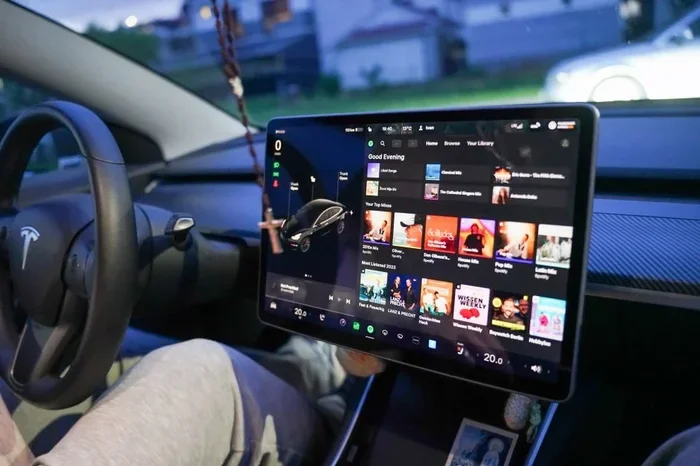
How to Start a YouTube Music Mix in Tesla Step by Step
Our guide shows you exactly how to start a youtube music start mix tesla in simple steps. You will learn setup, troubleshooting, and expert tips to get the best sound. Whether you drive a Model 3 or Model Y, this guide has you covered.
Key Takeaways
- Easy Setup: You can start a youtube music start mix tesla in just a few minutes using the touchscreen browser or the Tesla app.
- Multiple Methods: There are at least three different ways to play YouTube Music in your Tesla, including Bluetooth and the built-in browser.
- Premium Makes It Better: A YouTube Music Premium subscription removes ads and lets you download mixes for offline listening.
- Common Issues Have Fixes: Most problems with audio playback can be solved with a simple browser refresh or app update.
- Quality Matters: Adjusting audio settings in your Tesla can significantly improve your music streaming experience.
📑 Table of Contents
- What Is YouTube Music Mix on Tesla?
- How to Set Up YouTube Music in Your Tesla
- Step-by-Step Guide to Starting a YouTube Music Mix in Tesla
- Tips for the Best Music Experience in Tesla
- Troubleshooting Common Issues
- YouTube Music vs Other Streaming Apps in Tesla
- Final Thoughts on YouTube Music Mix in Tesla
What Is YouTube Music Mix on Tesla?
Have you ever wanted to play a youtube music start mix tesla and just let the music flow during your drive? It is easier than you think. YouTube Music is a popular streaming service. It lets you create mixes based on your favorite songs, artists, and playlists. When you combine it with your Tesla, you get a powerful music setup right at your fingertips.
A mix on YouTube Music is a smart playlist. It builds itself based on what you listen to most. The Tesla touchscreen makes it simple to control everything. You can start, pause, and switch mixes without taking your eyes off the road for long. This guide will walk you through every step. You will learn how to set it up, start a mix, and fix common problems.
Many Tesla owners love streaming music while driving. Whether you are on a short commute or a long road trip, having your favorite tunes ready is a big deal. YouTube Music offers millions of songs and mixes. And the Tesla infotainment system makes it all feel smooth and natural.
How to Set Up YouTube Music in Your Tesla
Before you can start a mix, you need to set things up. The process is simple and takes only a few minutes. There are a few different ways to do this. Let us look at each one.
Method 1: Use the Tesla Browser
The easiest way to access YouTube Music in your Tesla is through the built-in web browser. Your Tesla comes with a web browser already installed. You can use it to visit the YouTube Music website. Here is how to do it:
- Tap the browser icon on your Tesla touchscreen.
- Type music.youtube.com in the address bar.
- Log in to your Google account.
- Search for the song, artist, or playlist you want.
- Tap the mix button to start playing.
This method works well for all Tesla models. It does not require any extra apps. You just need a good internet connection. If you have been looking for a simple way to start youtube music mix in tesla, this is the fastest route.
Method 2: Use the Tesla App on Your Phone
Another great option is to use the Tesla mobile app. The app lets you control many Tesla features from your phone. You can also use it to play music. Here is what you need to do:
- Open the Tesla app on your phone.
- Make sure your phone is connected to your Tesla via Bluetooth.
- Open YouTube Music on your phone.
- Select the mix you want to play.
- The music will stream through your car speakers.
This method is handy if you already have your phone nearby. It also works well if you want to switch tracks from your phone. Just keep in mind that you need a stable Bluetooth connection. If your signal drops, the music may pause.
Method 3: Use a Third-Party App
Some Tesla owners like to use third-party apps for music. Apps like Spotify or Apple Music are also popular choices. But if you specifically want YouTube Music, the browser method is still the best. There are some unofficial apps that people have installed. However, these can be risky. They may not work with every Tesla software update. Stick with the official methods for the best experience.
If you are new to Tesla and need help getting started with your vehicle, you might also want to read our guide on how to start a car without key safely. It covers essential Tesla access tips.
Step-by-Step Guide to Starting a YouTube Music Mix in Tesla
Now that you know the setup options, let us get into the actual steps. This section shows you exactly how to start a youtube music mix tesla from scratch. Follow these steps carefully.
Step 1: Connect to Wi-Fi or Mobile Data
First, make sure your Tesla has an internet connection. YouTube Music needs data to stream. You can connect to Wi-Fi or use your phone as a hotspot. To connect to Wi-Fi:
- Go to Controls on your Tesla touchscreen.
- Tap Settings.
- Select Wi-Fi.
- Choose your network and enter the password.
A strong internet connection is key. Without it, your music will buffer or stop. If you are on the road, mobile data works too. Just make sure you have a good signal.
Step 2: Open the Browser and Go to YouTube Music
Next, open the web browser on your Tesla. Type in music.youtube.com. You will see the YouTube Music homepage. If you are not logged in, you will need to enter your Google account details. Logging in gives you access to your playlists and mixes.
Pro tip: You can save YouTube Music as a bookmark in your Tesla browser. This way, you can jump straight to it next time. It saves you from typing the full URL every time.
Step 3: Find or Create a Mix
YouTube Music creates mixes automatically. When you listen to a song, the app suggests a mix based on it. To find your mixes:
- Tap the Search bar in the browser.
- Type in an artist or song you like.
- Look for the “Mix” or “Radio” option.
- Tap it to start the mix.
You can also create your own custom mix. Just add songs to a playlist and let YouTube Music build around it. This is a great way to personalize your drive.
Step 4: Control Playback from the Touchscreen
Once the mix starts, you can control it from the Tesla screen. You can pause, skip, or go back to a previous track. The volume controls are right on the touchscreen. You can also use the steering wheel buttons to adjust volume or skip tracks.
If you want to switch to a different mix, just go back to the browser and pick a new one. It is that simple. You can have multiple mixes queued up for different moods or drives.
Step 5: Adjust Audio Settings for the Best Sound
Your Tesla has built-in audio settings. You can tweak these to get the best sound from YouTube Music. Here is what to do:
- Go to Controls, then Settings.
- Tap Sound.
- Adjust the equalizer settings.
- Turn on Immersive Audio if your Tesla supports it.
These small changes can make a big difference. Your music will sound richer and clearer. It is worth taking a few minutes to explore the settings.
For more Tesla tips and tricks, check out our article on how to start a car without a key for useful vehicle access tips.
Tips for the Best Music Experience in Tesla
Want to get the most out of your youtube music start mix tesla setup? Here are some practical tips that real Tesla owners use every day.
Use YouTube Music Premium
YouTube Music Premium costs a small monthly fee. But it removes ads completely. It also lets you download mixes for offline listening. This is great for areas with poor signal. You can also play music in the background while using other apps. The premium version makes the whole experience smoother.
Create a Driving Playlist
Instead of relying only on auto-generated mixes, create your own driving playlist. Add songs that match your driving mood. You can save this playlist in the Tesla browser for quick access. This way, you always have the right music ready.
Keep Your Tesla Software Updated
Tesla regularly releases software updates. These updates improve browser performance and audio quality. Make sure your car is running the latest version. You can check for updates in the Settings menu. Staying updated ensures fewer glitches and better sound.
Use a Quality Audio Source
The quality of your music depends on the source. YouTube Music streams at different bit rates. Higher bit rates mean better sound. Make sure you are streaming at the highest quality your connection allows. If you are on Wi-Fi, you can enjoy top-notch audio.
Explore Third-Party Tesla Apps
The Tesla community has built some amazing apps. Some apps enhance the music experience in your car. For example, there are apps that let you control Spotify or YouTube Music more easily. Just be careful and only download trusted apps. Always check reviews before installing anything.
If you are exploring other Tesla features, you may also find our guide on how to start a car without a key helpful for general Tesla ownership tips.
Troubleshooting Common Issues
Sometimes things do not work as expected. That is normal. Here are the most common problems and how to fix them.
Music Keeps Buffering or Pausing
If your music keeps stopping, check your internet connection first. A weak Wi-Fi signal or poor mobile data can cause this. Try moving closer to a Wi-Fi source or switching to a different network. You can also try refreshing the browser page.
YouTube Music Will Not Load
If the YouTube Music website will not load, try these steps:
- Clear your browser cache and cookies.
- Restart the Tesla browser.
- Check for a Tesla software update.
- Try accessing the site from a different browser tab.
Sometimes the browser just needs a fresh start. A simple restart of the infotainment system often fixes the issue.
No Sound from Speakers
If you can see the music playing but hear nothing, check the volume. Also make sure your Tesla is not in静音 mode. You can check this in the Sound settings. If the problem continues, try restarting the car. This resets the audio system.
Mixes Not Generating Properly
If YouTube Music is not creating mixes for you, it might be a login issue. Make sure you are logged in with the correct Google account. Also check that your YouTube Music app or browser session is active. Sometimes logging out and back in fixes this.
YouTube Music vs Other Streaming Apps in Tesla
There are many music streaming options for Tesla owners. How does YouTube Music compare? Let us look at a quick comparison.
| Feature | YouTube Music | Spotify | Apple Music |
|---|---|---|---|
| Mix Creation | Yes, auto-generated | Yes, auto-generated | Yes, personalized |
| Ad-Free Option | Premium required | Premium required | Subscription required |
| Offline Downloads | Yes (Premium) | Yes (Premium) | Yes (Subscription) |
| Browser Access in Tesla | Yes | Yes | Limited |
| Free Tier Available | Yes (with ads) | Yes (with ads) | No |
| Sound Quality | Up to 256 kbps | Up to 320 kbps | Up to 256 kbps |
YouTube Music is a strong choice for Tesla owners. It has great mix features and easy browser access. Spotify is also popular and has similar mix capabilities. Apple Music works well but has limited browser support in Tesla. Choose the one that fits your listening habits best.
Many Tesla owners start with one app and switch to another over time. The good news is that you can try them all. Most streaming services offer free trials. This lets you test which one you like best for your drives.
Final Thoughts on YouTube Music Mix in Tesla
Starting a youtube music start mix tesla experience is straightforward and rewarding. You have several methods to choose from. Whether you use the browser, the Tesla app, or a third-party solution, you can enjoy great music on every drive. The key is to set things up once and then let the music do the work.
Remember to keep your Tesla software updated. Use a strong internet connection. And explore the audio settings to get the best sound. With a little effort, your Tesla becomes a mobile music studio. Every drive becomes more enjoyable with the right mix playing.
Take some time today to try these steps. You will be surprised how easy it is. Soon, you will be cruising with your favorite YouTube Music mix flowing through your car speakers. Happy listening!
Frequently Asked Questions
Can I play YouTube Music in my Tesla without Wi-Fi?
Yes, you can use mobile data or a phone hotspot to stream YouTube Music in your Tesla. You can also download mixes with a YouTube Music Premium subscription for offline playback. Just make sure your data connection is strong enough for smooth streaming.
Does YouTube Music work on all Tesla models?
Yes, YouTube Music works on all Tesla models including Model S, Model 3, Model X, and Model Y. You access it through the built-in web browser or by connecting your phone via Bluetooth. The experience may vary slightly depending on your Tesla software version.
Do I need YouTube Music Premium to create mixes?
You do not need Premium to create or listen to mixes. However, Premium removes ads and allows offline downloads. Free users may experience ad interruptions and cannot download mixes for offline listening. The core mix features work with both free and paid plans.
Why does my YouTube Music keep pausing in Tesla?
Pausing usually happens due to a weak internet connection. Try switching to a stronger Wi-Fi network or restarting your mobile hotspot. You can also refresh the browser or restart the Tesla infotainment system to fix temporary glitches.
Can I control YouTube Music from the Tesla app?
Yes, you can control YouTube Music through the Tesla mobile app. Connect your phone to your Tesla via Bluetooth and play music from your phone. The Tesla app also lets you control volume and track selection from your phone screen.
Is there a better music app for Tesla than YouTube Music?
Spotify and Apple Music are also popular choices for Tesla owners. Spotify offers excellent mix features and has a dedicated app integration on newer Tesla models. The best app depends on your personal music preferences and whether you already have a subscription.