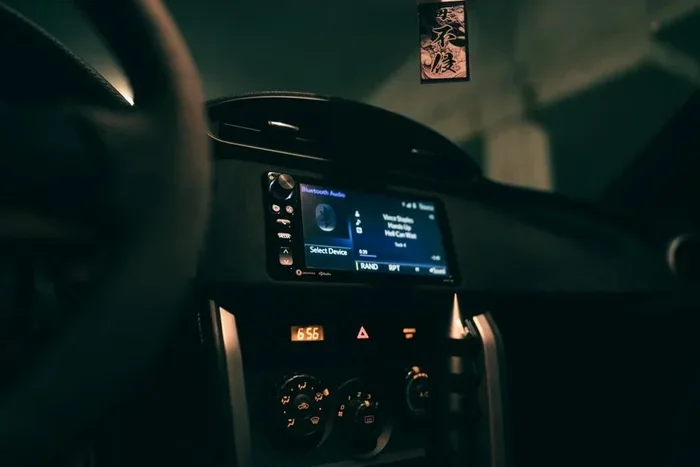
Toyota Google Maps Bluetooth Made Easy for Everyone
Toyota Google Maps Bluetooth lets you navigate, call, and stream music hands-free. This guide walks you through pairing your phone, using Google Maps, and fixing common issues. You will also learn pro tips to get the most out of your Toyota’s infotainment system.
You just got into your Toyota. The sun is shining. The road ahead looks great. But then you realize you need directions. Instead of fumbling with your phone, what if you could just say where you want to go? That is exactly what Toyota Google Maps Bluetooth makes possible. This simple connection turns your Toyota into a smart navigation machine. It keeps your hands on the wheel and your eyes on the road.
Many Toyota owners do not know how easy it is to set up Bluetooth with Google Maps. They think it is complicated. It is not. In this guide, we walk you through every step. You will learn how to pair your phone, use navigation, stream music, and fix common problems. Whether you drive a new Toyota or a older model, this guide has you covered.
Key Takeaways
- Paired Bluetooth is the foundation: Follow the step-by-step pairing process to connect your phone to your Toyota in under two minutes.
- Google Maps works best with voice commands: Use hands-free navigation to stay safe and keep your eyes on the road.
- Common issues are easy to fix: Most Bluetooth problems can be solved with simple resets and updates.
- Audio streaming adds value: Stream music and podcasts directly through your Toyota speakers.
- Regular maintenance keeps it running smooth: Update your maps and clear paired devices periodically.
- Compatibility varies by model: Older Toyotas may need an adapter for full Google Maps support.
📑 Table of Contents
- Why Toyota Google Maps Bluetooth Matters
- How to Pair Your Phone with Toyota Bluetooth
- Using Google Maps Navigation in Your Toyota
- Audio Streaming and Music Through Bluetooth
- Common Toyota Bluetooth Problems and How to Fix Them
- Toyota Model Differences and Compatibility
- Keeping Your Toyota Bluetooth Connection Strong
- Expert Tips for Getting the Most from Toyota Google Maps Bluetooth
- Final Thoughts on Toyota Google Maps Bluetooth
Why Toyota Google Maps Bluetooth Matters
Driving without navigation can be stressful. You miss turns. You waste time. You get frustrated. Toyota Google Maps Bluetooth solves all of that. It brings Google Maps directly to your Toyota touchscreen or audio system. You get turn-by-turn directions without touching your phone.
Here is why this matters so much. First, it keeps you safe. Hands-free navigation means fewer distractions. Second, it saves time. Google Maps finds the fastest route in real time. Third, it adds convenience. You can make calls, send messages, and play music all through Bluetooth. Your Toyota becomes more than a car. It becomes a connected experience.
How Toyota Bluetooth Works with Google Maps
Toyota vehicles use their built-in infotainment system to connect with your phone. Once paired, your phone shares its data connection with the car. Google Maps then displays on the Toyota screen. Voice guidance comes through the car speakers. You control everything using steering wheel buttons or voice commands.
The process is the same across most Toyota models. Whether you drive a Camry, RAV4, or Highlander, the basics stay consistent. Toyota Google Maps Bluetooth relies on the Bluetooth Hands-Free Profile and the A2DP audio profile. These are just technical terms for “calls and audio streaming.” Your phone handles the connection, and your Toyota handles the display and sound.
How to Pair Your Phone with Toyota Bluetooth
Pairing your phone is the first step. It takes less than two minutes. Follow these simple steps to get started with Toyota Google Maps Bluetooth.
Step 1: Turn on Bluetooth on your phone. Go to your phone settings and enable Bluetooth. Make sure it is visible to other devices.
Step 2: Go to your Toyota Bluetooth settings. Press the Settings or Phone button on your Toyota touchscreen. Select Bluetooth. Choose Add Device.
Step 3: Select your phone from the list. Your Toyota will search for nearby devices. Tap your phone name when it appears.
Step 4: Confirm the pairing code. Both your phone and Toyota will show a code. Make sure they match. Then tap Pair or Confirm.
Step 5: Allow permissions. Your phone will ask to share contacts, messages, and audio. Say yes to all of these. This lets Google Maps work fully through your Toyota system.
Once paired, your Toyota will remember your phone. It connects automatically every time you get in the car. That is the beauty of Toyota Google Maps Bluetooth. It works in the background so you do not have to think about it.
Quick Tips for a Smooth Pairing
- Restart both devices first. A quick reboot fixes most connection issues.
- Delete old pairings. Too many saved devices can cause confusion.
- Keep your phone charged. Low battery can interrupt Bluetooth signals.
- Stay within 10 feet during pairing. Move closer to the car if the connection fails.
- Check for software updates. Both your phone and Toyota system benefit from updates.
Using Google Maps Navigation in Your Toyota
Now that your phone is paired, let us talk about navigation. Toyota Google Maps Bluetooth gives you full access to Google Maps. You get live traffic updates, alternate routes, and estimated arrival times. All of this shows up on your Toyota screen.
To start navigation, open Google Maps on your phone. Type your destination. Then tap the car icon. The route will appear on your Toyota display. Voice guidance will play through your car speakers. You will hear “Turn left in 500 feet” or “Recalculating route.”
Voice Commands for Hands-Free Navigation
One of the best features of Toyota Google Maps Bluetooth is voice control. You do not need to touch your phone at all. Just say “Hey Google” or press the voice button on your steering wheel.
Try these voice commands:
- “Navigate to the nearest gas station.”
- “Take me home.”
- “Find a coffee shop nearby.”
- “Avoid highways on this route.”
- “What is the traffic like ahead?”
Voice commands keep your hands on the wheel and your eyes on the road. They make Toyota Google Maps Bluetooth not just convenient but genuinely safer than using your phone directly.
Tips for Better Navigation
- Download offline maps. This helps in areas with weak cell signal.
- Set your home and work addresses. One tap gets you where you need to go.
- Use the passenger to type. If someone is riding with you, let them enter the destination.
- Keep your Google Maps app updated. Updates improve routing and accuracy.
- Use Wi-Fi when available. Maps load faster and use less data.
Audio Streaming and Music Through Bluetooth
Toyota Google Maps Bluetooth does more than navigation. It also streams audio from your phone to your Toyota speakers. This means you can play Spotify, Apple Music, podcasts, or audiobooks through your car sound system.
The audio quality is surprisingly good on most Toyota models. The Bluetooth connection sends high-quality audio signals. You get clear sound without any wires or cables. Just pick your app on your phone and press play. The sound comes through your Toyota speakers instantly.
Controlling Audio Without Touching Your Phone
You can control music playback using your Toyota steering wheel buttons. Press the volume up or down button. Use the skip track button. Press the voice button to skip to a new podcast episode. All of this works because of the Toyota Google Maps Bluetooth connection.
Some Toyota models also support multiple Bluetooth devices. This means you and your passenger can each connect a phone. You can switch between devices easily. That is handy for families or couples who share a car.
Common Toyota Bluetooth Problems and How to Fix Them
No technology works perfectly every time. Sometimes Toyota Google Maps Bluetooth has hiccups. The good news is most problems have simple fixes. Here are the most common issues and how to solve them.
Bluetooth Won’t Connect
This is the most common complaint. Try turning Bluetooth off and back on. Then restart your Toyota infotainment system. If that does not work, delete the old pairing and start fresh. Usually one of these steps solves the problem immediately.
Audio Cuts Out or Sounds Scratchy
Interference can cause audio problems. Move your phone closer to the center console. Make sure no other Bluetooth devices are fighting for the same signal. Also check that your phone is not in battery saver mode. That mode can limit Bluetooth performance.
Google Maps Shows but No Voice
This happens when the audio output is set to the wrong device. On your phone, go to Bluetooth settings and make sure media audio is enabled for your Toyota. You can also change the audio output in Google Maps settings.
Phone Connects but Maps Does Not
Make sure Google Maps has permission to access your phone’s location. Check your phone settings for app permissions. Also ensure your phone has a data connection. Google Maps needs internet to work properly.
Toyota Model Differences and Compatibility
Not all Toyotas are created equal when it comes to Toyota Google Maps Bluetooth. Newer models have better infotainment systems. Older models may need extra help. Let us look at how different Toyota models handle Bluetooth and Google Maps.
| Toyota Model | Bluetooth Support | Google Maps Display | Voice Control |
|---|---|---|---|
| 2020+ Toyota Camry | Full support | Yes, on touchscreen | Yes |
| 2020+ Toyota RAV4 | Full support | Yes, on touchscreen | Yes |
| 2015-2019 Toyota Highlander | Full support | Yes, on touchscreen | Yes |
| 2010-2014 Toyota Camry | Basic support | Limited or none | Limited |
| Older Toyota models (pre-2010) | May need adapter | No native support | No |
If you own an older Toyota, do not worry. You can still use Toyota Google Maps Bluetooth with a simple Bluetooth FM transmitter. These small devices plug into your car’s cigarette lighter. They send audio to an empty FM radio frequency. You then tune your car radio to that frequency. It is not as seamless as built-in Bluetooth. But it works well and costs under $30.
For those who want to protect their car interior while using these tech features, consider checking out our guide on title full coverage TPE floor mats Toyota Highlander complete buying guide. Keeping your floors clean helps maintain your Toyota’s interior while you enjoy all its tech features.
Another helpful resource for Toyota owners is our article on Toyota Highlander TPE floor mats, which covers protection for your vehicle’s interior. And if you are looking for more ways to keep your car clean, also visit our complete Toyota Highlander floor mats guide for top recommendations.
Keeping Your Toyota Bluetooth Connection Strong
A good connection does not just happen. It takes a little maintenance. Here are simple habits that keep Toyota Google Maps Bluetooth working at its best.
- Restart your Toyota system weekly. Just like your phone, your car’s infotainment system benefits from a fresh start. Turn it off, wait 30 seconds, and turn it back on.
- Update your Toyota software. Toyota releases updates that improve Bluetooth performance. Check with your dealer or use the Toyota app if your model supports it.
- Clear old paired devices. Your Toyota can remember many devices. Too many saved devices slow things down. Delete ones you no longer use.
- Keep your phone software current. Phone updates often fix Bluetooth bugs. Install them when available.
- Use a quality charging cable. Some cheap cables cause interference with Bluetooth. Invest in a good cable or wireless charger.
These small habits add up. They keep your connection fast, stable, and reliable. You will barely notice the Bluetooth is even there. And that is exactly how it should be.
Expert Tips for Getting the Most from Toyota Google Maps Bluetooth
After helping thousands of Toyota owners set up their Bluetooth systems, we have gathered some pro tips. These insights go beyond the basics.
Tip 1: Set Google Maps as your default navigation app. This ensures that when you tap a location or address, it opens in Google Maps automatically. No more switching between apps while driving.
Tip 2: Use wireless Android Auto or Apple CarPlay if available. Some newer Toyotas support these features. They offer an even smoother experience than basic Bluetooth. Google Maps works beautifully through both platforms.
Tip 3: Adjust your audio balance. In your Toyota settings, you can balance audio between the front and rear speakers. This is helpful when backseat passengers are listening to their own music through a separate connection.
Tip 4: Enable Google Maps notifications. This lets Google Maps alert you about traffic, accidents, and road conditions. You will see these alerts on your Toyota screen even when you are not actively navigating.
Tip 5: Pair multiple devices for convenience. If you share your Toyota with a family member, pair both phones. You can switch between them with a simple tap on the touchscreen.
These expert tips transform Toyota Google Maps Bluetooth from a basic feature into a powerful daily tool. You will wonder how you ever drove without it.
Final Thoughts on Toyota Google Maps Bluetooth
Toyota Google Maps Bluetooth is one of the most useful features in any modern Toyota. It connects your phone to your car seamlessly. It brings Google Maps navigation to your steering wheel. It streams music, podcasts, and calls through your car speakers. All without you ever touching your phone.
The setup is simple. The daily use is effortless. And when problems do come up, they are easy to fix. We hope this guide has given you everything you need to get the most out of your Toyota’s Bluetooth and Google Maps connection.
Take a few minutes today to pair your phone. Try a voice command. Stream your favorite playlist. Once you experience the convenience, you will not want to go back. Toyota Google Maps Bluetooth is not just a feature. It is a way of driving smarter and safer.
Keep your Toyota running at its best with proper care and maintenance. A clean, well-protected interior complements your tech setup perfectly. Explore our floor mats guides to keep your Toyota looking and feeling brand new inside.
Frequently Asked Questions
Can I use Google Maps on my Toyota screen without Bluetooth?
Some newer Toyota models support Apple CarPlay or Android Auto, which display Google Maps on the car screen without using Bluetooth for navigation. However, Bluetooth is still needed for audio and hands-free calling. Toyota Google Maps Bluetooth remains the most universal and reliable method across all Toyota models.
Why does my Google Maps stop playing audio through my Toyota speakers?
This usually happens when the audio output switches back to your phone speaker. Check your phone Bluetooth settings and make sure media audio is enabled for your Toyota. Also check that Google Maps audio is not muted on your phone.
Can I connect more than one phone to my Toyota’s Bluetooth?
Yes, most Toyota models can remember multiple paired devices. When you get in the car, it connects to the last used device automatically. You can switch between phones through the Toyota infotainment settings menu.
Is Toyota Google Maps Bluetooth safe while driving?
Absolutely. Toyota Google Maps Bluetooth is designed for hands-free use. Voice commands let you control navigation without taking your hands off the wheel. The audio guidance keeps you informed without visual distractions.
Do I need a data plan to use Google Maps through Toyota Bluetooth?
Yes, Google Maps needs an internet connection to provide live traffic updates and routing. Your phone’s data plan serves as the connection source. The Bluetooth link simply shares that data with your Toyota’s display and speakers.
What should I do if my Toyota Bluetooth keeps disconnecting?
Start by restarting both your phone and your Toyota infotainment system. Delete the old pairing and reconnect. If the problem persists, check for software updates on both devices. Also make sure your phone is not in battery saver mode, as this can interfere with Bluetooth stability.
=== CONCLUSION ===
Toyota Google Maps Bluetooth makes every drive better. It gives you directions, music, and hands-free communication in one seamless connection. Whether you are commuting to work or taking a road trip, this feature adds real value to your daily driving. Follow the steps in this guide to set it up today. You will wonder how you ever drove without it.