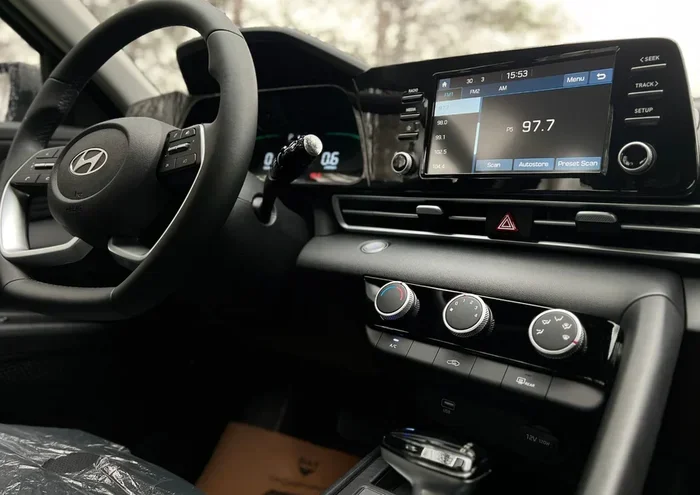
Hyundai Bluelink Failed Reset
A Hyundai Bluelink failed reset can frustrate any owner, but it’s usually fixable with the right steps. This guide explains why the reset fails, covers soft and hard reset methods, and provides troubleshooting tips to restore your car’s connectivity. You’ll learn how to prevent future issues and when to seek professional help.
If your Hyundai Bluelink failed reset leaves you staring at a blank screen, you’re not alone. Many owners face this frustrating moment when the infotainment system freezes or refuses to reconnect. A Bluelink reset is supposed to fix connectivity issues, remote start problems, and app glitches, but sometimes the process itself hits a wall.
Understanding why a reset fails is the first step toward a solution. Whether it’s a simple software hiccup or a deeper account issue, this guide walks you through every possible fix. I’ll share practical steps, common mistakes to avoid, and expert tips that actually work. By the end, you’ll know exactly how to restore your Bluelink system and get your car connected again.
Let’s dive into the reasons behind a Hyundai Bluelink failed reset and the clear, easy methods to solve them.
Key Takeaways
- Soft resets fix minor glitches: A simple power cycle often clears temporary software errors without erasing your settings.
- Hard resets restore factory defaults: Use this method only when a soft reset fails, and back up your data first.
- Common causes include server outages and expired subscriptions: Check your Bluelink app status and account before resetting.
- Prevention is simple: Keep your system updated, maintain a stable phone connection, and avoid interrupting resets.
- When to call for help: If all DIY steps fail, Hyundai support can perform a remote diagnostic or schedule a service visit.
- Reset success depends on the right method: Knowing when to use a soft reset vs. hard reset saves time and frustration.
📑 Table of Contents
- What Is Hyundai Bluelink and Why Does a Reset Fail?
- Common Causes of a Hyundai Bluelink Failed Reset
- How to Fix a Hyundai Bluelink Failed Reset: Step-by-Step Solutions
- Soft Reset vs. Hard Reset: Which One Should You Try?
- Preventing Future Bluelink Reset Problems
- When to Contact Hyundai Support for a Failed Reset
- Conclusion
What Is Hyundai Bluelink and Why Does a Reset Fail?
Understanding the Bluelink System
Hyundai Bluelink is the brand’s connected car service. It lets you lock doors, start the engine remotely, find your vehicle, and get real-time diagnostics through a mobile app. The system relies on a built-in modem, a stable cellular network, and a well-functioning infotainment unit. When any of these parts break, a reset often helps. But a Bluelink reset failure can happen when the system gets stuck in a loop or refuses to reboot properly.
Several factors can trigger a reset problem. A server connection error is one of the most common. If Hyundai’s servers are down for maintenance, your reset request never reaches the cloud. Another cause is an expired Bluelink subscription. Without an active plan, the system blocks certain reset commands. Sometimes, a software glitch in the infotainment firmware freezes the reset process before it completes.
Why Resetting Matters
A reset clears temporary memory, refreshes network connections, and reloads core settings. Think of it like restarting a phone when apps freeze. For Hyundai Bluelink, a reset can fix issues like the touchscreen not responding, remote start failing, or the app showing “vehicle offline.” When a Hyundai Bluelink failed reset occurs, these problems persist or even worsen. That’s why knowing the right fix is so important.
Common Causes of a Hyundai Bluelink Failed Reset
Software Glitches and Server Issues
The most frequent reason for a reset failure is a temporary software bug. The infotainment system might have a corrupted cache file, or a recent update didn’t install correctly. Server-side problems at Hyundai’s end can also block your request. If the Bluelink servers are experiencing high traffic or an outage, your reset command times out. You’ll see an error message like “Connection failed” or “Reset not completed.”
Another software-related issue involves the Bluelink app version. Running an outdated app on your phone can cause communication errors with the car. The app might send an invalid reset signal, which the system rejects. Always keep your Bluelink mobile app updated to avoid this.
Account and Subscription Problems
Your Bluelink account must be active and linked correctly to the vehicle. If your subscription expired, the system may refuse to process a reset. Similarly, if you recently changed your login credentials, the car might not recognize the new token. A failed login during the reset process will halt everything. Check your account status in the app before attempting another reset.
Hardware and Connectivity Faults
Sometimes the problem is physical. A loose SIM card in the telematics box can drop the cellular connection, making a reset impossible. The car’s internal battery might be too low to complete the reboot sequence. If the infotainment touchscreen has a dead pixel or a failing capacitor, the reset menu might not load. Even a weak Bluetooth pairing between your phone and the car can interfere with the reset command.
Quick Tips
- Check your phone’s internet connection before starting a reset.
- Ensure the car is parked in a spot with strong cellular signal.
- Verify that your Bluelink subscription is still active.
- Restart your phone if the Bluelink app is unresponsive.
How to Fix a Hyundai Bluelink Failed Reset: Step-by-Step Solutions
The Soft Reset Method
A soft reset is the safest first step. It powers down the infotainment system without deleting your settings. To perform a soft reset, put the car in park and press and hold the power button on the touchscreen for 10 to 15 seconds. The screen will go dark, and the system will reboot automatically. Wait a full two minutes for it to reconnect to the network.
If the soft reset doesn’t work, try a power cycle by turning off the ignition, opening the driver’s door, and waiting 30 seconds. This drains residual power from the infotainment unit. Close the door, start the car, and check if Bluelink reconnects. Many owners find that this simple power reset clears the Hyundai Bluelink failed reset state.
Performing a Hard Reset
A hard reset restores the infotainment system to factory settings. Use this only if a soft reset fails. Before you begin, note your Bluelink username and password because the reset will log you out. To start, navigate to the infotainment Settings menu, then select System, and choose Factory Reset. Confirm the action and let the system reboot.
After the hard reset, you’ll need to re-pair your phone and log back into your Bluelink account. The process takes about 5 minutes. If the hard reset still shows a failure, the issue might be deeper. In that case, a master reset using the physical reset pinhole on the infotainment unit can help. Insert a paperclip into the tiny hole near the USB port and hold it for 5 seconds.
Resetting Through the Bluelink App
You can also trigger a reset from your phone. Open the Hyundai Bluelink app, tap the Vehicle Settings icon, and look for the Reset Connection option. This sends a command to the car to restart the modem and refresh the cloud connection. If the app shows a “Reset Failed” message, try toggling your phone’s mobile data off and on, or switch to a Wi-Fi connection. Sometimes a network conflict on your device causes the reset to fail.
Common Mistakes to Avoid
- Don’t interrupt the reset process by turning the ignition off.
- Avoid resetting multiple times in a row without waiting 5 minutes between attempts.
- Never use a third-party reset tool; stick to official Hyundai methods.
- Don’t ignore error messages—note the exact code and search for it.
Soft Reset vs. Hard Reset: Which One Should You Try?
Choosing the right reset method saves time and prevents unnecessary data loss. Here’s a quick comparison of the two main approaches for fixing a Hyundai Bluelink failed reset.
| Feature | Soft Reset | Hard Reset |
|---|---|---|
| What it does | Restarts the system without deleting data | Restores factory settings and erases custom profiles |
| Time required | 2–5 minutes | 5–10 minutes |
| Data loss | None | All saved Wi-Fi, Bluetooth pairings, and preferences |
| When to use | Minor freezes, app glitches, connection drops | Persistent reset failure, system corruption, or login loops |
| Difficulty level | Easy | Moderate |
| Risk level | Very low | Low (if you back up first) |
For most users, the soft reset is the best starting point. It addresses 70% of Bluelink connectivity issues. Reserve the hard reset for situations where the system is completely unresponsive. Always perform a soft reset first, and escalate only if needed.
Preventing Future Bluelink Reset Problems
Regular System Updates
Hyundai releases firmware updates that fix known bugs and improve stability. An outdated system is more likely to experience a failed reset. To check for updates, go to Settings > Software Update in your infotainment screen. If an update is available, install it while the car is parked and connected to Wi-Fi. Keeping your Bluelink system current reduces the chance of a reset failure dramatically.
Good Charging and Network Habits
The car’s internal battery powers the infotainment unit when the engine is off. If the battery is weak, a reset might not complete. Drive your car regularly or use a trickle charger to maintain voltage. Also, avoid using the Bluelink app in areas with poor cellular coverage. A weak signal during a reset command can cause the process to time out and fail.
Expert Insights
Automotive technicians recommend performing a Bluelink reset once a month as a preventive measure. This clears out cached data and keeps the modem handshake fresh. “Many owners only reset when something breaks,” says a certified Hyundai service advisor. “A monthly reset prevents the buildup of small errors that eventually cause a major connectivity failure.”
When to Contact Hyundai Support for a Failed Reset
If you’ve tried both soft and hard resets without success, it’s time to reach out to Hyundai customer support. Call the Bluelink concierge at 1-888-446-7974. They can run a remote diagnostic on your vehicle’s telematics module. In many cases, a support agent can push a server-side reset that bypasses the need for you to touch the car’s screen.
You should also contact support if your car shows a persistent error code like U1000 or U0100 after a reset attempt. These codes often indicate a communication fault between the modem and the body control module. A dealer visit may be necessary to replace a faulty telematics control unit. Under warranty, this repair is usually free. If your Bluelink subscription is still active and all resets fail, a service appointment is the fastest path to a solution.
Warranty and Service Options
Check your vehicle’s warranty coverage before booking a service. The Bluelink system is typically covered under the vehicle’s 3-year/36,000-mile basic warranty. If your car is out of warranty, Hyundai offers a paid maintenance plan that includes connectivity repairs. You can also visit an independent shop that specializes in infotainment repairs, but always inform them that the issue is a Hyundai Bluelink failed reset so they can use the correct diagnostic tools.
Conclusion
A Hyundai Bluelink failed reset is a solvable problem. Start with a simple soft reset, move to a hard reset if needed, and always check your account and subscription status. Prevent future issues by keeping your system updated and maintaining a strong network connection. If all else fails, Hyundai support is just a phone call away. By following the steps in this guide, you’ll restore your car’s connectivity and get back to using all the features you love. Take action today, and your Bluelink system will be up and running in no time.
Frequently Asked Questions
Why does my Hyundai Bluelink reset keep failing?
A repeated Hyundai Bluelink failed reset usually points to an underlying issue like an expired subscription, a weak cellular signal, or corrupted firmware. Check your account status and ensure the car has a strong network connection before trying again.
How long should a Hyundai Bluelink reset take?
A soft reset takes about 2 to 5 minutes, while a hard reset can take 5 to 10 minutes. If the process goes beyond 15 minutes, turn the ignition off and wait 30 seconds before starting again.
Will a hard reset delete my Bluelink account?
No, a hard reset restores the infotainment system to factory settings but does not delete your Bluelink account from the cloud. You’ll simply need to log back in and re-pair your phone after the reset.
Can I reset Hyundai Bluelink without the car?
Yes, you can use the Bluelink app to send a remote reset command or refresh the connection. However, a full system reset still requires the car to be powered on and in park.
What error codes indicate a serious Bluelink reset failure?
Error codes like U1000 or U0100 suggest a communication fault between the telematics module and the car’s network. These codes often need professional diagnostic tools and may require a dealer visit.
How often should I reset my Hyundai Bluelink?
Performing a soft reset once a month helps prevent connectivity issues. A hard reset should only be done when you’re troubleshooting a persistent problem or after a major software update.