How to Fix a Cadillac Cue Screen Step by Step Guide
Our step-by-step guide shows you exactly how to fix a Cadillac CUE screen using simple resets, troubleshooting tricks, and expert tips. Whether your screen is frozen, black, or unresponsive, these methods work fast. You will learn soft resets, hard resets, and when to seek professional help.
Dealing with a glitchy or frozen Cadillac CUE screen is frustrating. You turn the key, the dashboard lights up, but that big touchscreen just sits there dark or unresponsive. It happens to Cadillac owners more often than you might think.
This guide walks you through how to fix a Cadillac CUE screen step by step. We keep it simple. No jargon. No confusing tech talk. Just clear instructions that actually work. Whether your screen is frozen, showing a black display, or acting weird in general, we have you covered.
By the end of this article, you will know exactly what to do. You will understand why your CUE infotainment system misbehaves, and you will have the tools to fix it yourself. Let us get into it.
Key Takeaways
- A soft reset solves most minor CUE screen glitches in under two minutes.
- A hard reset (factory reset) can fix deeper software problems affecting the Cadillac infotainment system.
- Black screen issues are often caused by loose connections or outdated software.
- Regular CUE updates prevent many common screen problems before they start.
- Knowing when to visit a dealer saves time and avoids costly DIY mistakes.
- Basic maintenance like keeping the software updated extends your CUE system lifespan.
📑 Table of Contents
- Understanding the Cadillac CUE System
- How to Fix a Cadillac CUE Screen: Soft Reset
- How to Fix a Cadillac CUE Screen: Hard Reset
- Updating Your Cadillac CUE Software
- Checking Hardware Connections
- When to Visit a Cadillac Dealer
- Preventing Future CUE Screen Issues
- What If the CUE Screen Still Will Not Work?
- Final Thoughts
Understanding the Cadillac CUE System
The Cadillac User Experience, or CUE, is the infotainment system built into Cadillac vehicles. It controls your touchscreen display, audio, navigation, phone connections, and vehicle settings. Think of it as the brain behind your dashboard’s digital interface.
The CUE system runs on a dedicated computer processor. Like any computer, it can slow down, freeze, or crash. This is especially true as the software ages or after a major update. Understanding how the system works helps you troubleshoot better.
Common CUE Screen Problems
Before you jump into fixes, let us look at the most common CUE display problems Cadillac owners face:
- Black screen — The display stays completely dark even when you turn the ignition on.
- Frozen screen — The touchscreen stops responding to taps or swipes.
- Flickering display — The screen flickers or flashes randomly while driving.
- Slow response — The screen takes forever to register your inputs.
- Error messages — You see pop-up warnings about system errors or failed updates.
- Touchscreen not responding — The screen lights up but your taps do nothing.
Each of these problems has a fix. The next sections walk you through them one by one.
How to Fix a Cadillac CUE Screen: Soft Reset
A soft reset is the first thing you should try. It is like restarting your phone. It clears temporary glitches without deleting any of your settings or data. Most minor CUE screen problems go away after a soft reset.
Step-by-Step Soft Reset Instructions
- Put your vehicle in park. Make sure the engine is running or the ignition is in the ON position.
- Press and hold the power button. The power button is usually on the left side of the CUE screen or on the infotainment panel. Hold it for about 10 to 15 seconds.
- Wait for the screen to go dark. The display will turn off. This is normal. Do not panic.
- Release the power button. Wait about 30 seconds.
- Press the power button again. The CUE system will boot back up. This takes about 30 to 60 seconds.
Once the screen comes back on, check if the Cadillac touchscreen is responding normally. Try tapping a few icons or opening the navigation app. If everything works, you are all set.
Quick Tip: If your CUE screen is completely frozen and you cannot tap anything, the soft reset is your best first move. It resolves about 70% of minor display issues.
How to Fix a Cadillac CUE Screen: Hard Reset
If the soft reset does not work, it is time for a hard reset. This method restores the CUE system to its default settings. Think of it as a deeper restart. It can fix more stubborn problems like persistent freezing, error loops, or a completely unresponsive CUE touchscreen.
When Should You Try a Hard Reset?
Use a hard reset when:
- The soft reset did not fix the problem.
- Your CUE screen black issue persists after multiple restarts.
- You keep seeing the same error message over and over.
- The system is running extremely slowly and nothing works.
Step-by-Step Hard Reset Instructions
- Turn off the ignition. Switch the key to the OFF position or press the start button to turn the engine off.
- Open the driver’s door. Some CUE systems require the door to be open for the reset process.
- Locate the reset button. On some Cadillac models, there is a small pinhole reset button near the CUE unit. Use a paperclip or a thin pin to press it gently.
- Hold the power button and the reset button together. Press and hold both for about 10 seconds. The screen may flicker.
- Release both buttons. Wait for the system to reboot. This may take up to two minutes.
- Test the screen. Once the system is back, try navigating through the menus.
Important: A hard reset may erase some of your personal settings, like saved Wi-Fi networks or Bluetooth pairings. You will need to reconnect these after the reset. Your saved navigation favorites and media playlists should remain intact on most models.
Updating Your Cadillac CUE Software
One of the most overlooked reasons for CUE display problems is outdated software. Cadillac releases updates that fix bugs, improve performance, and address known screen issues. If your CUE system is running old software, updating it might solve your problem entirely.
How to Check for CUE Updates
- Turn on your vehicle. Make sure the CUE screen is active.
- Go to Settings. Look for the gear icon on the main screen.
- Select System Updates. The exact path may vary by model year.
- Check for available updates. If an update is available, follow the on-screen prompts to download and install it.
- Let the system restart. Do not turn off the vehicle during the update process.
Some Cadillac models support over-the-air updates. Others require a visit to the dealer for the latest software. Check your owner’s manual or contact your local Cadillac dealer to find out which applies to your vehicle.
Quick Tip: If your CUE screen flickering or freezing started right after a software update, there may be a bug in that specific update. Check Cadillac forums or contact the dealer for a patch.
Checking Hardware Connections
Sometimes the problem is not software. It is hardware. Loose cables or faulty connections inside the CUE unit can cause a black screen, flickering, or total display failure. This is more common in older Cadillac models or vehicles that have been through rough conditions.
What to Look For
- Loose display cable: The cable connecting the CUE unit to the screen can come loose over time. This often happens after battery replacements or electrical work.
- Faulty power supply: If the CUE unit is not getting consistent power, the screen may turn off randomly.
- Damaged screen: Physical damage like cracks or pressure marks can cause display issues even if the system software is working fine.
For most owners, checking hardware connections means visiting a mechanic or Cadillac dealer. They have the tools and access to open the unit and inspect the internal connections safely.
If your Cadillac CUE screen goes completely dark and none of the reset methods work, a loose internal connection is a likely culprit. A professional technician can reseat the cables and test the display hardware quickly.
When to Visit a Cadillac Dealer
Not every CUE system problem can be fixed at home. Some issues require professional diagnosis and repair. Here are clear signs that it is time to visit a dealer:
- The screen remains completely black after both soft and hard resets.
- You see physical damage like cracks or discoloration on the display.
- The CUE system keeps restarting on its own repeatedly.
- Error codes appear on the dashboard that reference the infotainment unit.
- Your vehicle’s Cadillac touchscreen stops working and affects other systems like backup cameras or climate controls.
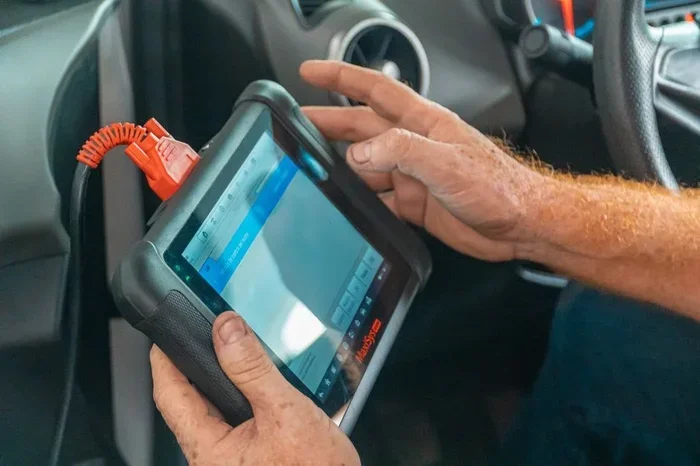
Dealers have access to specialized diagnostic tools that can read error codes from the CUE system. They can also perform a Cadillac CUE factory reset if needed. This restores the entire system to its original out-of-the-box state.
Before visiting the dealer, write down the exact symptoms you are experiencing. Note when the problem started and what you have already tried. This helps the technician diagnose the issue faster and saves you time and money.
Preventing Future CUE Screen Issues
The best fix is prevention. A few simple habits can keep your Cadillac infotainment screen running smoothly for years:
- Keep your software updated. Install CUE updates as soon as they become available.
- Restart the system regularly. A quick soft reset once a month clears out temporary files and keeps things running fast.
- Avoid overloading the system. Too many apps running at once can slow down the CUE processor.
- Keep the screen clean. Dust and grime can interfere with touchscreen responsiveness. Use a soft microfiber cloth.
- Protect the electrical system. A healthy battery and clean connections support stable CUE performance.
These small steps go a long way. They keep your CUE infotainment system reliable and your driving experience enjoyable.
What If the CUE Screen Still Will Not Work?
In rare cases, none of the fixes above work. If your Cadillac CUE screen remains dead or unresponsive after trying every method in this guide, the issue may be a hardware failure. This could be a faulty display module, a damaged motherboard, or a deeper electrical problem.
Do not keep trying random fixes at this point. Continuing to reset or reboot a failing hardware component can sometimes make things worse. Take your vehicle to a certified Cadillac technician who can properly diagnose and replace the defective part.
Also, keep in mind that if your CUE screen is completely down, you may not be able to access keyless start features or digital dashboard controls. In these situations, knowing alternative ways to operate your vehicle can be helpful. For instance, if you ever find yourself locked out of digital controls, understanding how to start a car without a key can be a valuable backup skill for any Cadillac owner.
The bottom line is this: most CUE screen problems are fixable with simple resets and updates. Only a small percentage of cases require professional repair. Start with the basics and work your way up.
Final Thoughts
Fixing a Cadillac CUE screen does not have to be scary or complicated. Most of the time, a simple soft reset or software update solves the problem. If those do not work, a hard reset or a visit to the dealer gets the job done.
The key is to stay calm and work through the steps in order. Start simple, move to more advanced fixes, and know when to call for help. Your Cadillac CUE system is a powerful piece of technology, and with the right care, it will serve you well for many miles to come.
Keep this guide bookmarked. The next time your CUE touchscreen acts up, you will know exactly what to do. Safe driving and happy troubleshooting.
Frequently Asked Questions
How long does a Cadillac CUE soft reset take?
A soft reset takes about two to three minutes total. You hold the power button for 10 to 15 seconds, wait 30 seconds, and then press the power button again. The system boots back up within 30 to 60 seconds after that.
Will a hard reset delete my saved data on the CUE system?
A hard reset may erase personal settings like Wi-Fi passwords and Bluetooth pairings. However, your saved navigation favorites and media playlists usually stay intact. Always note down important settings before performing a hard reset.
Why does my Cadillac CUE screen go black while driving?
A black screen while driving is often caused by a loose connection, a power supply issue, or a software glitch. Try a soft reset first. If the problem keeps happening, it could be a hardware issue that needs professional inspection.
Can I update my CUE system myself?
Some Cadillac models support over-the-air updates that you can do yourself through the Settings menu. Other models require a visit to the dealer or a certified technician for software updates. Check your owner’s manual for your specific model.
How often should I restart my CUE system?
Restarting your CUE system once a month is a good habit. It clears temporary files, refreshes the software, and helps prevent minor glitches from building up into bigger problems.
Is it safe to drive with a frozen CUE screen?
Yes, it is generally safe to drive with a frozen CUE screen. The screen controls the infotainment features, but your vehicle’s core driving functions like steering, braking, and acceleration are not affected. However, you will lose access to navigation, audio controls, and backup camera feeds until the screen is fixed.
=== CONCLUSION ===
How to fix a Cadillac CUE screen is a question many Cadillac owners face at some point. The good news is that most problems are easy to solve with the right approach. A soft reset handles the small stuff. A hard reset tackles the bigger glitches. Software updates prevent problems before they start. And knowing when to visit a dealer saves you from guessing.
Keep your CUE infotainment system in top shape with regular maintenance and simple resets. Your touchscreen is the centerpiece of your Cadillac’s digital experience, and it deserves a little care. Use this guide whenever you need it, and you will be back to enjoying a smooth, responsive display in no time.