Why Your 2020 Dodge Challenger Radio Update Failed
A 2020 Dodge Challenger radio update failed can frustrate any owner. This guide explains the most common reasons your Uconnect system won’t update and gives you clear, step-by-step fixes. You will learn how to troubleshoot a frozen screen, resolve firmware errors, and prevent future update problems.
There is nothing more annoying than sitting in your 2020 Dodge Challenger, ready to hit the road, only to find that your radio will not update. A 2020 Dodge Challenger radio update failed message on your screen can throw a wrench into your day. Whether the screen freezes, the update progress bar stalls, or you get an error code, this problem is more common than you might think.
Many Dodge Challenger owners face this exact issue, and the good news is that most fixes are simple and doable at home. In this guide, we will walk you through every reason your radio update might have failed, show you the best solutions, and give you tips to stop it from happening again. By the end, you will feel confident fixing the problem yourself.
The Uconnect infotainment system in the 2020 Dodge Challenger is a powerful piece of technology. It handles audio, navigation, Bluetooth connectivity, and even smartphone integration. When the radio software update goes wrong, it can affect more than just music. Your GPS, phone pairing, and voice commands may all be impacted. That is why understanding this issue matters so much.
Key Takeaways
- Power and connection issues are the #1 cause of a 2020 Dodge Challenger radio update failed problem.
- A corrupted USB drive or incompatible file format can block your Uconnect update completely.
- Resetting the system often resolves minor glitches that stop the radio from updating.
- Keeping your firmware current prevents most common radio errors and improves performance.
- Knowing when to seek professional help saves time and money on complex software failures.
- Regular maintenance of your infotainment system keeps your Dodge Challenger running smoothly.
📑 Table of Contents
- Why Does the 2020 Dodge Challenger Radio Update Fail?
- How to Fix a Failed Radio Update on Your 2020 Dodge Challenger
- Preventing Future Radio Update Failures
- When to Seek Professional Help
- Understanding the Uconnect System in the 2020 Dodge Challenger
- Common Mistakes to Avoid During Radio Updates
- Quick Tips for a Smooth Radio Update
- Final Thoughts
Why Does the 2020 Dodge Challenger Radio Update Fail?
Several factors can cause your Dodge Challenger radio update to fail. Understanding the root cause is the first step toward fixing it. Let us look at the most common reasons.
Power Interruption During the Update
The most frequent reason for a 2020 Dodge Challenger radio update failed message is a power loss mid-update. If your battery dies, you accidentally turn the ignition off, or there is a voltage drop, the update process stops abruptly. This can corrupt the firmware files and leave your system in an unstable state.
Even a brief interruption can cause major problems. The radio may refuse to turn on, or it might get stuck on the update screen. Always make sure your vehicle has a full battery before starting any update.
Corrupted USB Drive or Wrong File Format
Dodge requires you to use a USB drive formatted in a specific way for radio updates. If your USB drive has the wrong file system, or if the downloaded update files are damaged, the system will reject them. This is a very common reason for Uconnect update failure.
Make sure your USB drive is formatted as FAT32. Also, double-check that you downloaded the correct firmware file for your specific model year and trim level. Using the wrong file almost always leads to a failed update.
Outdated Software Version
Sometimes you cannot jump directly to the latest firmware. If your current software is too far behind the target version, the update may fail midway. Dodge designs their updates to work in stages, especially for major version jumps.
Always check your current software version before attempting an update. If you are several versions behind, you may need to install intermediate updates first. Skipping versions is one of the top reasons for a Dodge Challenger radio update failed error.
Overheating or Extreme Temperatures
Your vehicle’s electronics work best within a normal temperature range. If you try to update your radio in extreme heat or cold, the system may not respond properly. The infotainment unit can overheat during a long update process, causing it to shut down or freeze.
Try to perform updates in a climate-controlled environment, like a garage. This simple step can prevent many frustrating update failures.
How to Fix a Failed Radio Update on Your 2020 Dodge Challenger
Now that you know the common causes, let us get into the fixes. These steps will help you resolve the issue and get your radio working again.
Step 1: Perform a Hard Reset
A hard reset is the easiest and most effective fix for a frozen or stuck radio. Here is how to do it:
- Turn off your vehicle and remove the key from the ignition.
- Disconnect the negative battery terminal for at least 15 minutes.
- Reconnect the battery terminal and start the vehicle.
- Check if the radio system boots up normally.
This method clears temporary errors and resets the Uconnect system. Many owners report that a simple hard reset solved their radio update failure right away.
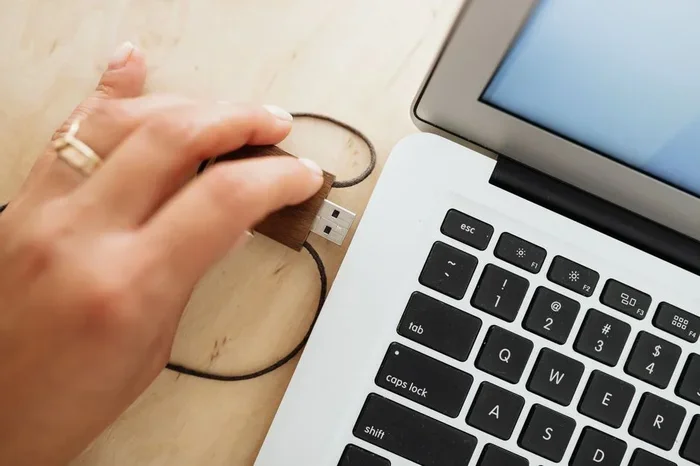
Step 2: Try the Update Again with a New USB Drive
If the hard reset does not work, grab a fresh USB drive. Format it as FAT32 and re-download the firmware file from the official Dodge website. Make sure the file is not corrupted by checking its size and file name against the instructions.
Plug the USB drive into the correct port, usually located in the center console or glove box. Start the update process again and do not touch the vehicle until it is complete. Patience is key here.
Step 3: Use the Dealer Update Method
If both previous steps fail, your local Dodge dealer can help. Dealers have professional diagnostic tools and direct access to the latest firmware. They can flash your infotainment system properly and ensure everything is set up correctly.
Many dealerships offer this service for free or at a low cost. It is worth calling ahead to confirm they can handle Uconnect software updates for the 2020 model year.
Step 4: Check for Software Conflicts
Sometimes third-party apps or aftermarket devices can interfere with the radio update process. If you have installed any new apps, Bluetooth devices, or USB accessories, remove them before trying the update again.
Software conflicts are an often-overlooked cause of Dodge Challenger radio update failed errors. A clean system gives the update the best chance of success.
Preventing Future Radio Update Failures
Prevention is always better than cure. Follow these tips to keep your 2020 Dodge Challenger radio running smoothly and avoid future update problems.
Keep Your Battery Healthy
A weak battery is the enemy of any software update. Have your battery tested regularly, especially before scheduled updates. If your battery is more than three years old, consider replacing it proactively.
You can also use a battery maintainer or trickle charger if you park your Challenger for long periods. This ensures you always have enough power for a full update cycle.
Download Updates from Official Sources Only
Always get your firmware files from the official Dodge website or through your dealer. Third-party websites may host corrupted or outdated files that cause update failures.
Stick with official sources to protect your Uconnect system and keep your warranty intact. It is a small step that saves a lot of headaches.
Schedule Updates During Idle Time
Do not start a radio update when you are in a rush. The process can take anywhere from 15 minutes to over an hour depending on the update size. Make sure you have plenty of time and will not be tempted to interrupt the process.
Find a safe, parked location and let the update run its full course. Treat it like a software installation on your computer, and give it the time it needs.
Keep Your System Clean
Regularly restart your infotainment system by holding the power button for 10 seconds. This clears cache and prevents minor glitches from building up over time.
Also, delete unused apps and clear out old USB files from your system. A clean Dodge Challenger infotainment setup runs faster and is less prone to errors during updates.
When to Seek Professional Help
Most radio update issues are fixable at home. But some problems need professional attention. Here is when you should call in the experts.
If your radio screen stays black even after a hard reset, there may be a hardware issue. Similarly, if you hear strange clicking sounds or the system completely refuses to power on, the unit itself may need replacement.
Another sign you need help is repeated update failures despite trying all the fixes we discussed. This could indicate a deeper software corruption that only a dealer or certified technician can resolve.
Do not try to open the radio unit yourself or attempt complex soldering. That can void your warranty and cause more damage. Trust the professionals for serious issues.
Understanding the Uconnect System in the 2020 Dodge Challenger
The Uconnect system is the brain behind your Challenger’s entertainment and connectivity features. Understanding how it works helps you appreciate why updates matter so much.
The 2020 model year came with an upgraded Uconnect interface that supports larger touchscreens, better graphics, and enhanced voice recognition. The system runs on a dedicated processor and stores its software in internal memory, which is updated through the USB method or at the dealer.
Regular Uconnect software updates do more than just fix bugs. They also add new features, improve navigation maps, and enhance Bluetooth compatibility. Keeping your system updated means you always have the best experience from your Challenger’s tech suite.
When an update fails, it is not just the radio that suffers. Navigation accuracy, phone connectivity, and even safety features like blind-spot monitoring alerts can be affected. That is why resolving a 2020 Dodge Challenger radio update failed issue quickly is so important.
Common Mistakes to Avoid During Radio Updates
Learning what not to do is just as important as knowing the right steps. Here are common mistakes that lead to update failures.
- Using a USB drive that is too large. Dodge recommends 16GB or smaller. Larger drives can confuse the system.
- Removing the USB drive during the update. This almost always corrupts the firmware and causes serious problems.
- Ignoring error messages. If the system displays a warning, stop and investigate before proceeding.
- Updating in direct sunlight or extreme heat. Overheating can cause the process to fail or damage the unit.
- Skipping intermediate updates. Always update step by step, especially for major version changes.
Avoiding these simple mistakes can save you hours of frustration and potentially costly repairs. A little patience goes a long way with your Dodge Challenger radio system.
Quick Tips for a Smooth Radio Update
- Fully charge your battery or keep the engine running during the update.
- Use a high-quality USB drive from a trusted brand.
- Close all other apps and disconnect Bluetooth devices before starting.
- Set your phone to do-not-disturb mode so notifications do not interrupt you.
- Write down your current software version before you begin.
- Keep a copy of the firmware file on your computer as a backup.
- Have your vehicle identification number ready when downloading files.
These small preparations make a big difference. They set you up for success and reduce the chance of a 2020 Dodge Challenger radio update failed situation.
Final Thoughts
Dealing with a 2020 Dodge Challenger radio update failed error can be frustrating, but it is almost always fixable. Most of the time, the problem comes down to power issues, corrupted files, or simple user error. By following the steps in this guide, you can get your Uconnect system back up and running in no time.
Remember to prevent future issues by keeping your battery healthy, using official update files, and giving the update process your full attention. Your Dodge Challenger is a powerful machine, and its technology should work just as hard as the engine under the hood.
Take the time to care for your infotainment system. A well-maintained Dodge Challenger radio makes every drive more enjoyable, whether you are cruising on the highway or navigating city streets. Apply what you learned here, and you will be back to enjoying your music, podcasts, and GPS in no time.
Frequently Asked Questions
What should I do if my 2020 Dodge Challenger radio update failed mid-process?
First, do not panic. Turn off your vehicle and disconnect the negative battery terminal for 15 minutes. This performs a hard reset that often clears temporary errors. After reconnecting, check if the system boots normally and try the update again with a fresh USB drive.
Can a dead battery cause a 2020 Dodge Challenger radio update failed error?
Absolutely. A weak or dying battery is one of the most common reasons for radio update failures. The update process requires stable power throughout. Always ensure your battery is fully charged before starting any firmware update on your Uconnect system.
How long does a radio update take on a 2020 Dodge Challenger?
Most updates take between 15 and 45 minutes to complete. Larger firmware updates may take longer. Do not turn off your vehicle or disconnect the USB drive during this time. Interrupting the process can corrupt the firmware and cause serious problems.
Is it safe to update my Dodge Challenger radio myself, or should I go to a dealer?
For most users, a DIY update is safe and straightforward as long as you follow the official instructions from Dodge. However, if you have tried multiple times and the update keeps failing, it is wise to visit a certified dealer. They have professional tools and can handle complex issues safely.
What USB format does the 2020 Dodge Challenger radio update require?
Dodge requires the USB drive to be formatted as FAT32. Using NTFS or exFAT will cause the system to reject the update files. Always double-check your USB format before starting the update process to avoid a failed radio update.
Will a failed radio update damage my 2020 Dodge Challenger’s infotainment system?
A single failed update rarely causes permanent damage. Most issues are temporary and fixable with a hard reset or by retrying the update. However, repeated failed updates can lead to firmware corruption that may require professional repair or a dealer visit to resolve.
=== CONCLUSION ===
A 2020 Dodge Challenger radio update failed problem is fixable with the right approach. Most causes are simple, from power interruptions to USB drive errors, and the solutions are straightforward. By following the steps outlined in this guide, you can troubleshoot and resolve the issue yourself in most cases.
Keep your system updated, use quality USB drives, and always ensure stable power during updates. These habits will protect your Uconnect infotainment system and keep your Dodge Challenger running at its best. Share this guide with fellow Challenger owners who might be facing the same frustration, and remember that a little patience goes a long way in tech troubleshooting.