Nissan Bluetooth Pairing Simple Steps for Quick Setup
Nissan Bluetooth pairing is easy and lets you make hands-free calls, stream music, and use voice commands while driving. This guide walks you through the exact steps for pairing your phone with any Nissan model, from setup to fixing common connection issues. You will learn quick tips that save time and keep your car’s audio system running smoothly.
Nissan Bluetooth pairing has become one of the most useful features in modern vehicles. Whether you want to stream your favorite playlist, take calls without touching your phone, or use voice commands, connecting your device wirelessly is the way to go. Nissan Bluetooth pairing is designed to be fast, simple, and reliable. In this guide, we walk you through every step so you can get connected in minutes.
If you have ever tried to figure out your car’s tech settings and felt confused, you are not alone. Many Nissan owners want to know how to pair phone to car but are not sure where to start. The good news is that the process is much easier than it looks. Once you pair your device once, your Nissan will remember it and connect automatically every time you get in the car.
This guide covers everything from basic setup to advanced tips. We also share common mistakes to avoid and quick fixes for when things do not work. By the end, you will feel confident using Nissan Bluetooth connection every time you drive.
Key Takeaways
- Simple Pairing Process: Nissan Bluetooth pairing takes only a few minutes using your car’s infotainment screen.
- Broad Compatibility: Most Nissan models from recent years support Bluetooth connection for phones and audio streaming.
- Troubleshooting Is Straightforward: Most Bluetooth problems can be fixed by resetting the connection or updating your phone’s software.
- Hands-Free Safety: Pairing enables safe hands-free calling and voice commands while you drive.
- Multiple Devices Work: You can pair more than one phone to your Nissan’s system for shared use.
- Keep It Updated: Regular maintenance of your Bluetooth settings ensures a strong and stable connection.
📑 Table of Contents
What Is Nissan Bluetooth Pairing and Why It Matters
Nissan Bluetooth pairing is the process of linking your smartphone wirelessly to your car’s infotainment system. Once paired, your phone and car communicate through a short-range wireless signal. This lets you access calls, music, and other features without using cables.
The NissanConnect system is Nissan’s built-in technology platform that manages these connections. It works with both Apple and Android devices. Most Nissan models from the past decade support this feature. You can find it on the Rogue, Frontier, Altima, Maxima, Kicks, and many other models.
Here is why Bluetooth pairing in cars matters so much:
- Safety: Hands-free calling keeps your eyes on the road and hands on the wheel.
- Convenience: Stream music from your phone through your car speakers without any wires.
- Voice Control: Use your voice to make calls, send texts, or change songs.
- Seamless Connection: Your phone connects automatically when you sit behind the wheel.
- Multiple Users: Different family members can pair their own phones to the same car.
Most modern vehicles now include wireless car Bluetooth setup as a standard feature. If your Nissan has a touchscreen display, it likely supports this function. Even older models may have Bluetooth available through an optional package or aftermarket upgrade.
How to Pair Your Phone with a Nissan
The Nissan Bluetooth pairing process is straightforward. Below, we break it down into simple steps for both iPhone and Android users. Follow along and you will be connected in no time.
Step-by-Step Pairing Guide
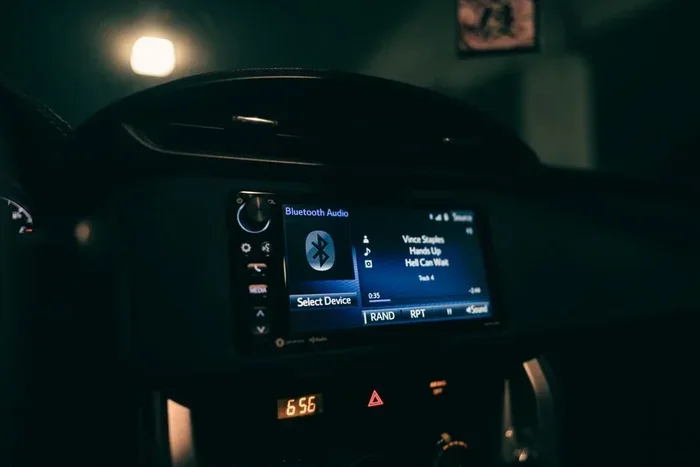
Step 1: Turn on Your Car’s Bluetooth. Start your Nissan and press the Settings button on the infotainment screen. Look for the Bluetooth or Phone menu. Select “Bluetooth Settings” and toggle the switch to On.
Step 2: Enable Bluetooth on Your Phone. Open your phone’s Settings app. Find the Bluetooth option and turn it on. Make sure your phone is set to be visible or discoverable. This allows your car to detect it.
Step 3: Search for Devices. On your Nissan’s screen, tap “Search for Devices” or “Add New Device.” Your car will scan for nearby Bluetooth devices. This usually takes about 10 to 20 seconds.
Step 4: Select Your Phone. Your phone’s name should appear on the car’s screen. Tap on it to begin the pairing process. You may see a passkey or PIN displayed on both screens.
Step 5: Confirm the Connection. Check that the passkey matches on both your phone and your car’s display. Tap “Pair” or “Confirm” on both devices. You should see a confirmation message on the screen.
Step 6: Test the Connection. Play some music on your phone or make a test call. If the audio comes through your car speakers and calls connect clearly, you are all set.
Quick Tips for a Smooth First Pairing
- Make sure your phone battery is at least 20% before pairing.
- Keep your phone within three feet of the car’s infotainment system during setup.
- Turn off other Bluetooth devices nearby that might interfere with the connection.
- If your car does not find your phone, restart both devices and try again.
Most people complete the entire Nissan Bluetooth pairing process in under five minutes. It becomes second nature after the first time.
Nissan Bluetooth Pairing for Different Models
The basic Nissan Bluetooth connection process is similar across most models. However, some Nissan vehicles have slightly different menus or features. Here is a quick look at how it works on popular models.
Rogue and Compact SUVs
The Nissan Rogue is one of the best-selling SUVs in the lineup. Its infotainment system supports wireless audio streaming and hands-free calling. The pairing steps are the same as the general guide above. The Rogue’s touchscreen makes it easy to navigate to the Bluetooth settings. If you also want to learn about your Rogue’s fuel tank capacity for road trip planning, check out our Nissan Rogue Fuel Tank Capacity guide.
Frontier and Trucks
The Nissan Frontier pickup truck comes with a sturdy infotainment system. Bluetooth pairing works well for hands-free calling on the job site or during long hauls. The Frontier’s system may have slightly different button layouts, but the core pairing steps remain the same. If you notice any dashboard warning lights after pairing, such as a flashing airbag light, our Why Is My Airbag Light Flashing On My Nissan Frontier article can help you diagnose the issue.
Altima and Sedans
The Altima offers a refined interior with smooth Bluetooth connectivity. The NissanConnect system in the Altima supports both Apple CarPlay and Android Auto, which adds even more functionality. Pairing works the same way, and you can switch between your phone’s audio and the car’s built-in radio with ease.
Kicks and Compact Cars
The Nissan Kicks is a compact crossover with a user-friendly tech setup. Even though it is smaller, it does not skimp on Bluetooth device pairing features. The Kicks supports wireless streaming and voice commands, making it a great choice for daily commuters.
| Nissan Model | Bluetooth Support | Wireless Streaming | Voice Commands |
|---|---|---|---|
| Rogue | Yes | Yes | Yes |
| Frontier | Yes | Yes | Yes |
| Altima | Yes | Yes | Yes |
| Kicks | Yes | Yes | Yes |
| Maxima | Yes | Yes | Yes |
Common Nissan Bluetooth Pairing Problems and Fixes
Even though Nissan Bluetooth pairing is simple, you may run into issues from time to time. Here are the most common problems and how to solve them quickly.
Phone Not Showing Up on the Car Screen
This is the most common issue. First, make sure Bluetooth is turned on both on your phone and in your car. Then, check that your phone is set to “Visible” or “Discoverable” in its Bluetooth settings. If it still does not appear, restart both devices and try again. Sometimes simply turning Bluetooth off and back on does the trick.
Audio Cuts Out or Sounds Static
Interference can cause wireless audio streaming to drop or sound fuzzy. Move your phone closer to the car’s center console. Also, check if other wireless devices nearby are causing interference. Wi-Fi routers, microwaves, and other Bluetooth devices can all create noise. Switching to a different Bluetooth channel on your car’s settings can also help.
Paired but Calls Do Not Connect
If your Nissan Bluetooth connection shows as paired but calls will not go through, check your phone’s call permissions. Go to your phone’s Settings, find Bluetooth, and make sure “Phone Calls” is enabled for the car connection. On iPhone, this is under Settings > Bluetooth > Your Car > Info. On Android, it is under Settings > Connected Devices > Bluetooth > Your Car.
Car Forgets Paired Device After Turning Off
Some Nissan models delete paired devices after the ignition is turned off. To fix this, go to your car’s Bluetooth settings and look for an option like “Remember Device” or “Auto-Connect.” Turn this on so your phone reconnects automatically each time you start the engine.
Too Many Devices Connected
Most Nissans can store up to eight paired devices. If your list is full, the car may not connect to a new phone. Go to your Bluetooth settings and delete old or unused devices. This frees up space and keeps your connection fast and clean.
Tips to Get the Best Bluetooth Experience in Your Nissan
Once you have successfully completed Nissan Bluetooth pairing, you can take a few extra steps to improve your experience every time you drive.
Keep Your Phone’s Contact List Synced
Syncing your phone book with your car lets you access contacts through the steering wheel controls. This makes making calls even safer and faster. On most Nissans, you can enable contact sync in the Bluetooth settings menu. Simply check the box that says “Sync Phone Book” or “Access Phone Contacts.”
Use Voice Commands While Driving
Nissan voice commands let you control your phone without taking your hands off the wheel. Press the voice button on your steering wheel and say “Call [contact name]” or “Play [song name].” This feature works best when your phone is fully paired and synced. It is one of the safest ways to use your phone while driving.
Set Up Multiple Devices
If you share your car with a spouse or family member, set up multiple Bluetooth connections. Each person can pair their own phone. The car will remember each device and can switch between them easily. Some Nissans even announce which phone is connected when you start the engine.
Update Your Car’s Software
Nissan occasionally releases software updates for the infotainment system. These updates can improve Bluetooth performance and add new features. Check with your local Nissan dealer to see if any updates are available for your model. Keeping your system updated ensures the best wireless connection possible.
Avoid Common Mistakes
- Do not pair your phone while driving. Always set up Bluetooth while the car is parked.
- Do not ignore error messages on the screen. They usually point to the exact problem.
- Do not leave old paired devices on your list. Clean them up regularly for best performance.
- Do not assume the problem is your car. Often, a simple phone restart fixes the issue.
Key Takeaways
- Simple Pairing Process: Nissan Bluetooth pairing takes only a few minutes using your car’s infotainment screen.
- Broad Compatibility: Most Nissan models from recent years support Bluetooth connection for phones and audio streaming.
- Troubleshooting Is Straightforward: Most Bluetooth problems can be fixed by resetting the connection or updating your phone’s software.
- Hands-Free Safety: Pairing enables safe hands-free calling and voice commands while you drive.
- Multiple Devices Work: You can pair more than one phone to your Nissan’s system for shared use.
- Keep It Updated: Regular maintenance of your Bluetooth settings ensures a strong and stable connection.
Conclusion
Nissan Bluetooth pairing is one of the simplest yet most valuable features in your vehicle. It gives you hands-free calling, wireless music streaming, and voice control at your fingertips. Whether you drive a Rogue, Frontier, Altima, Kicks, or any other Nissan model, the pairing process follows the same basic steps.
By following the guide above, you can connect your phone in just a few minutes. If you run into issues, the troubleshooting tips will help you get back on track quickly. Remember to keep your devices updated and your Bluetooth list clean for the best experience.
Now that you know how easy Nissan Bluetooth connection really is, there is no reason not to use it. Get in your car, follow the steps, and enjoy a smarter, safer driving experience today.
Frequently Asked Questions
How long does Nissan Bluetooth pairing take?
The entire Nissan Bluetooth pairing process takes about 3 to 5 minutes. Once your phone is paired, the car connects automatically every time you start the engine, so you never have to do it again.
Can I pair more than one phone to my Nissan?
Yes, most Nissan models can store up to eight paired devices. This means you and your family members can each connect your own phone to the car’s system. The car will switch between devices easily.
Why won’t my phone connect to my Nissan’s Bluetooth?
The most common reason is that Bluetooth is turned off on one of the devices or the phone is not set to discoverable. Try turning both Bluetooth connections off and back on. If that does not work, delete the old pairing and start fresh.
Does Nissan Bluetooth pairing work with both iPhone and Android?
Yes, Nissan Bluetooth connection works with both Apple and Android phones. The pairing process is nearly identical for both platforms. You can stream music, make calls, and use voice commands regardless of your phone type.
Can I stream music wirelessly through Nissan Bluetooth?
Absolutely. Once you complete Nissan Bluetooth pairing, you can stream music, podcasts, and any audio from your phone through your car’s speakers. This works wirelessly without any cables or adapters needed.
What should I do if the Bluetooth connection keeps dropping?
First, check that your phone is close to the car’s infotainment system. Then, restart both your phone and the car’s system. Make sure your phone’s software is up to date. If the issue persists, delete the paired device and pair it again from scratch.