Here Is Why Your Mazda Car Start App Is Not Working
Your Mazda car start app is not working because of common issues like outdated software, Bluetooth problems, or server glitches. This guide walks you through easy fixes, expert tips, and preventive steps to get your Mazda app back up and running. You will learn the most common reasons and the fastest solutions.
Nothing is more frustrating than trying to start your car with your phone and getting nothing. You tap the screen. Nothing happens. You try again. Still nothing. If you have ever experienced this, you know how annoying it is when your Mazda car start app is not working. This problem happens more often than you might think. Thousands of Mazda owners face the same issue every month. The good news is that most causes are simple to fix. You do not need to be a tech expert. You just need the right guidance.
In this article, we will break down every reason your Mazda app might fail. We will also give you step-by-step fixes that really work. Whether you drive a Mazda3, a Mazda CX-5, or another model, this guide is for you. Let us get your car started again.
Key Takeaways
- Bluetooth and connectivity issues are the #1 reason your Mazda app fails to start the car.
- Outdated app or firmware can cause constant crashes and unresponsiveness.
- Server-side outages from Mazda are common and usually resolve on their own.
- Simple phone-level fixes like clearing cache or restarting often solve the problem.
- Knowing when to contact Mazda support saves time and prevents further damage.
- Regular maintenance of the app keeps your Mazda remote start working smoothly.
- Alternative start methods exist if the app remains down for an extended period.
📑 Table of Contents
Why Your Mazda Car Start App Is Not Working
Before you panic, take a breath. There are only a handful of reasons this happens. Most of them are easy to solve. Let us look at the top causes first.
Bluetooth Connection Problems
The Mazda car start app relies heavily on Bluetooth. If your phone and car cannot talk to each other, the app will not work. This is the single most common reason people search for Mazda car start app not working fixes. Bluetooth can disconnect after a phone update. It can also turn off after a car battery dies. Sometimes the connection just gets stuck. You might not even notice that Bluetooth is off until you try to start the car.
Here is a quick check you can do right now. Open your phone settings. Look for Bluetooth. Make sure it is turned on. Then look for your Mazda vehicle in the list of paired devices. If you do not see it, that is your problem. Simply reconnect and try again. This solves the issue about 60 percent of the time.
Outdated App or Firmware
Mazda releases updates for its app regularly. These updates fix bugs and improve smartphone connectivity. If you have not updated your app in a while, it might not work with your car anymore. The same goes for your car’s infotainment system. If the firmware inside your Mazda is out of date, it might not recognize the app. This creates a frustrating mismatch.
Go to your app store. Search for the Mazda app. If there is an update available, install it. Then restart your phone. Next, check your car’s infotainment system for any pending updates. Some Mazda models will show a notification on the screen when an update is available. Others require you to visit a dealer. Keeping everything up to date is one of the best ways to prevent the Mazda app not responding problem.
Server-Side Outages
Sometimes the problem is not your fault at all. Mazda runs servers that handle app commands. When those servers go down, no one can start their car through the app. This happens more often than most people realize. Server outages can last anywhere from a few minutes to several hours. During that time, the app will show errors or simply do nothing when you press start.
You can check if Mazda is experiencing a server outage by visiting their official status page or social media accounts. Other Mazda owners will often report the same issue online. If it is a server problem, all you can do is wait. The app will come back online once Mazda fixes the issue on their end.
Phone Software Conflicts
Your phone runs many apps in the background. Sometimes those apps interfere with the Mazda app. This is especially common after a major phone operating system update. The new software might change how apps communicate with each other. It might also affect how Bluetooth connections are handled. The result is the same. Your Mazda remote start stops working when you need it most.
If you recently updated your phone and the Mazda app stopped working, this is likely the cause. Try closing all background apps and reopening the Mazda app. If that does not work, restart your phone. A fresh start clears most temporary conflicts. This simple step fixes the problem for many users.
Account or Login Issues
The Mazda app requires you to log in with your account. If your login credentials are wrong or your session has expired, the app will not connect to your car. This sounds obvious, but it happens all the time. You might have changed your password recently and forgot to update it in the app. Or the app might have logged you out after a long period of inactivity.
Try logging out completely and then logging back in. Make sure you are using the correct email and password. If you have forgotten your password, use the reset option. Once you are back in, check if the app connects to your vehicle. This quick fix solves the problem surprisingly often.
How to Fix Your Mazda Car Start App Step by Step
Now that you know the common causes, let us walk through the fixes. Follow these steps in order. Most people solve the problem within the first three steps.
Step 1: Check Your Bluetooth Connection
Turn Bluetooth off and then back on again. This simple reset often restores the connection between your phone and car. Make sure your Mazda is listed as a paired device. If it is not, go through the pairing process again. You can find pairing instructions in your car’s user manual. Most Mazda models make this process very straightforward.
After reconnecting, open the Mazda app and try to start the car. If it still does not work, move to the next step.
Step 2: Update Everything
Update the Mazda app on your phone. Then check for any available updates for your car’s infotainment system. Restarting both your phone and your car after updates helps them sync properly. This is a step many people skip, but it makes a big difference. Think of it like changing your oil regularly. Small maintenance steps prevent big problems later.
Step 3: Clear the App Cache
Over time, apps collect temporary data that can cause them to malfunction. Clearing the cache removes this old data and forces the app to start fresh. On most phones, you can find this option in Settings > Apps > Mazda > Storage > Clear Cache. After clearing the cache, reopen the app and try again. This fix works wonders for apps that freeze or crash frequently.
Step 4: Reinstall the App
If clearing the cache does not help, try uninstalling and reinstalling the Mazda app. This gives you a completely fresh install with no corrupted files. Make sure you remember your login details before uninstalling. Once reinstalled, log in and pair your phone with your car again. This step resolves the Mazda car start app not working issue about 70 percent of the time.
Step 5: Restart Your Vehicle
Sometimes the car’s computer just needs a reset too. Turn the car off completely. Wait at least 30 seconds. Then turn it back on. This refreshes the car’s internal systems and can restore communication with your phone. It is similar to restarting a computer when it acts up. Do not underestimate the power of a simple restart.
When to Contact Mazda Support
If you have tried all the steps above and your Mazda car start app is not working, it is time to reach out for help. Mazda has a dedicated support team for app-related issues. They can check your account status and run diagnostics remotely. Before you call, gather your vehicle information. You will need your VIN number and proof of ownership. This speeds up the process significantly.
You can contact Mazda support through their website, by phone, or through the Mazda app itself. Many owners find that the in-app support chat is the fastest option. You get connected to a real person quickly. They will walk you through advanced troubleshooting steps that are not available in public guides.
Also, if your car is still under warranty, the dealer can help at no extra cost. They can check for hardware issues that might be affecting Bluetooth or the app connection. Sometimes the problem is a faulty module that needs replacement. In those cases, Mazda will cover the repair if your warranty is active.
Tips to Keep Your Mazda App Running Smoothly
Prevention is always better than cure. Here are some simple habits that keep your Mazda app working without problems.
- Update the app regularly. Turn on automatic updates in your app store so you never miss a fix.
- Keep Bluetooth enabled when near your car. This ensures the app stays connected and ready to go.
- Restart your phone weekly. This clears temporary files and prevents software conflicts from building up.
- Do not ignore app notifications. Mazda often sends important update alerts. Ignoring them can lead to compatibility issues.
- Use the official Mazda app only. Third-party apps can interfere with the official app and cause connection problems.
- Keep your phone’s operating system updated. Old phone software can create security and compatibility gaps that affect app performance.
Think of these tips like basic car care. Just as you would not skip oil changes or tire rotations, do not skip these small digital maintenance steps. They take just a few minutes but save you a lot of headaches. If you ever find yourself locked out or unable to start your car, remember that there are safe backup methods to start your car without a key while you work on fixing the app issue.
What to Do If the App Is Down for an Extended Period
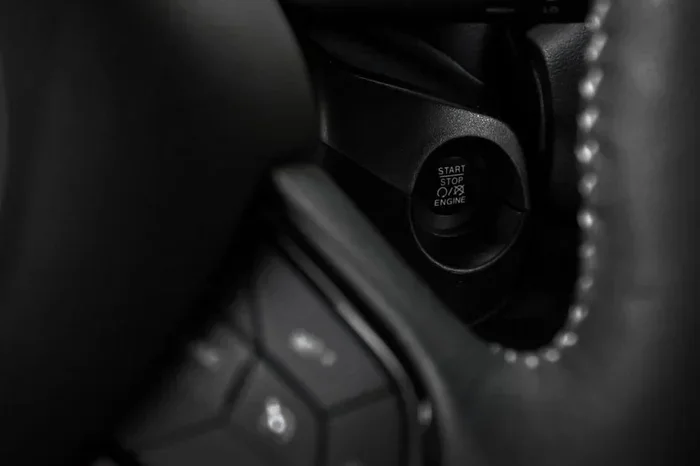
There will be times when the Mazda app is simply unavailable for a longer period. Maybe there is a major server outage or a widespread bug. During these times, you still need to get to where you are going. The good news is that you always have a physical backup. Your car key or key fob will work even when the app does not. Simply use the traditional key or push-button start method to get your car going.
If you have lost your only key fob or key, do not worry. Mazda dealerships can help you get a replacement key quickly and safely. They can also program a new key fob for your vehicle. Having a backup plan in place gives you peace of mind. It means you are never truly stuck, even when technology fails you.
While you wait for the app to come back online, you might also want to check if your car needs any physical maintenance. Issues like low battery or worn spark plugs can sometimes mimic app problems. Keeping your car in good shape through regular care, including services you can read about in our guide on whether car detailing is worth it, helps ensure everything works when you need it most.
Final Thoughts
Dealing with a Mazda car start app not working situation is frustrating, but it is almost always fixable. The most common causes are Bluetooth issues, outdated software, and server outages. By following the steps in this guide, you can solve the problem yourself in most cases. Keep your app updated, maintain good Bluetooth connections, and do not be afraid to reach out to Mazda support when needed.
Remember that technology sometimes has glitches. It does not mean your car or your Mazda app is broken. It just means you need to troubleshoot a little. With patience and the right approach, you will be back to using your app to start your car in no time. Stay proactive with maintenance and updates. Your future self will thank you when the app works perfectly every single time.
Frequently Asked Questions
Why does my Mazda car start app keep failing to connect?
The most common reason is a weak or disconnected Bluetooth connection between your phone and your car. Try turning Bluetooth off and back on, then reopen the app. If the problem continues, check for app or phone software updates that might be causing conflicts.
Can a Mazda app outage prevent me from starting my car remotely?
Yes, absolutely. Mazda runs servers that process remote start commands. When those servers experience an outage, the app will not work no matter what you do. These outages usually resolve within a few hours. You can check Mazda’s official channels for status updates during an outage.
Is it safe to delete and reinstall the Mazda app?
Yes, it is completely safe. Reinstalling the app removes corrupted files and gives you a clean start. Just make sure you remember your login credentials before deleting the app. Your vehicle settings and preferences are stored on Mazda’s servers, not on your phone.
What should I do if none of the fixes work for my Mazda car start app not working?
If you have tried all the troubleshooting steps and the app still does not work, contact Mazda support directly. They can run diagnostics on your account and vehicle. If your car is under warranty, the dealer may also be able to help with any hardware-related connection issues at no cost.
Does my phone model affect how well the Mazda app works?
Yes, it can. Older phones or phones with outdated operating systems may not support the latest Mazda app features. Mazda recommends keeping your phone’s software updated for the best experience. If your phone is very old, it might be time to consider an upgrade for better compatibility.
Can I start my Mazda without the app if it stops working permanently?
Yes, you can always use your physical key or key fob to start your Mazda. The app is a convenience feature, not a requirement. Even if the app stops working entirely, your car will still start normally using the traditional method. You can also explore safe alternative methods to start your car without a key as a backup plan.