How to Connect Kia to Bluetooth and Start Streaming
Connecting Kia to Bluetooth lets you stream music, answer calls, and use apps without touching your phone. This guide covers the simple pairing steps for all Kia models, from Sportage to Soul. You’ll also find troubleshooting tips and expert advice to keep your Bluetooth working perfectly.
If you want to connect Kia to Bluetooth, you are just a few steps away from enjoying hands-free music and calls. Modern Kia vehicles come with easy-to-use infotainment systems that make pairing your phone fast and simple. Whether you drive a new Kia EV6 or a classic Kia Soul, the process is almost the same. Bluetooth lets you stream your favorite playlists, answer calls, and use navigation apps without ever picking up your phone. This guide will walk you through every step, from turning on Bluetooth to streaming your favorite apps.
Before you start, make sure your phone and your Kia are both ready. You need a phone with Bluetooth capability and a Kia model that supports wireless or USB connection. Most Kia cars from 2014 onward have built-in Bluetooth. If you are unsure, you can check your owner’s manual or visit the connecting Kia to Bluetooth page for model-specific details.
Bluetooth technology has improved a lot over the years. Today, you can enjoy high-quality audio and stable connections even in crowded areas. The key is to follow the right steps and know a few tips that make the process smooth. Keep reading to learn how to set up your Kia Bluetooth quickly and easily.
Key Takeaways
- Pairing is quick: Most Kia models connect to Bluetooth in under a minute.
- Works for all models: Whether you drive a Kia Soul, Sportage, or Sorento, the steps are similar.
- Stream safely: Use hands-free calling and voice commands to stay focused on the road.
- Fix issues fast: Restarting your phone and car infotainment system solves most Bluetooth problems.
- Maximize sound quality: Keep your phone close and avoid interference from other devices.
- Keep it updated: Regular firmware updates for your Kia infotainment system improve Bluetooth stability.
📑 Table of Contents
- Why Bluetooth Matters for Your Kia Drive
- How to Connect Kia to Bluetooth: A Simple Step-by-Step Guide
- Bluetooth Pairing for Different Kia Models
- Stream Music, Calls, and Apps Through Your Kia
- Fix Bluetooth Connection Problems Fast
- Get the Best Sound Quality from Your Kia Bluetooth and Keep It Working for Years
- Conclusion
Why Bluetooth Matters for Your Kia Drive
Bluetooth changes the way you interact with your car. Instead of fumbling with cables or holding your phone, you can keep your hands on the wheel and your eyes on the road. Here are the main benefits of using Bluetooth in your Kia.
- Hands-free calling: Answer calls through your car’s microphone and speakers. You do not need to hold your phone.
- Music streaming: Play Spotify, Apple Music, or any app through your car’s audio system.
- Navigation audio: Hear turn-by-turn directions from Google Maps or Apple Maps clearly.
- Voice commands: Use your voice to dial, play music, or send messages safely.
- Multiple devices: Many Kia models let you pair more than one phone, so passengers can connect too.
These features make every drive more comfortable and safer. Once you connect Kia to Bluetooth, you will wonder how you ever drove without it.
How to Connect Kia to Bluetooth: A Simple Step-by-Step Guide
Follow these steps to pair your phone with your Kia. The process takes less than one minute.
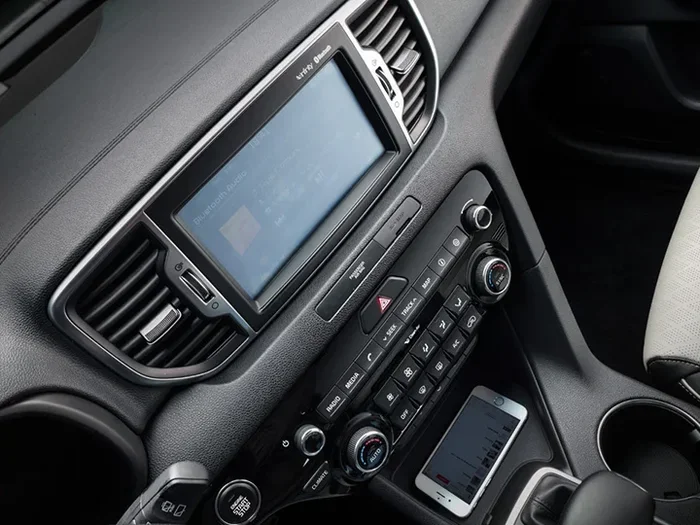
- Turn on your Kia’s infotainment system. Press the power button on the touchscreen or the audio unit. Wait for the home screen to appear.
- Open the Bluetooth settings. Tap the “Settings” icon, then select “Bluetooth.” On some models, you might see “Phone” or “Connections.”
- Make your Kia discoverable. The system will automatically become visible to nearby devices. You may see a message like “Searching for devices.”
- Turn on Bluetooth on your phone. Open your phone’s settings, enable Bluetooth, and let it search for devices.
- Select your Kia from the list. Your phone will show the Kia name, such as “Kia UVO” or “Kia Audio.” Tap on it to pair.
- Confirm the pairing code. Both the car and your phone will display a code. Make sure they match, then tap “Pair” or “Connect.”
- Allow permissions. Your phone may ask to share contacts, calls, and audio. Accept these so you can make hands-free calls and stream music.
Once paired, your Kia will remember the phone. You can connect automatically next time you get in the car.
Tips for a Faster Connection
- Keep your phone within arm’s reach during pairing.
- Turn off other Bluetooth devices nearby to avoid confusion.
- If your Kia has a USB port, you can also plug in your phone for a wired connection while you set up Bluetooth.
Bluetooth Pairing for Different Kia Models
While the basic steps are the same, some Kia models have slight differences. Here is how it works for popular models.
Kia Sportage and Sorento
The Kia Sportage and Sorento use the UVO infotainment system. After you open Bluetooth settings, tap “Add Device.” The system will search for your phone. For a detailed walkthrough, see connecting mobile phone to car Bluetooth Kia Sportage. These models also support Android Auto and Apple CarPlay, which you can use over Bluetooth or USB.
Kia Soul and Rio
The Kia Soul and Rio have a simpler audio system. You can still pair your phone by going to Settings > Bluetooth > Pair. Older models might require you to hold the “Phone” button on the steering wheel to enter pairing mode. If you need help with older models, check how to connect Bluetooth Tk A Kia for step-by-step instructions.
Kia 2023 and Newer Models
Newer Kia models come with wireless Bluetooth and wireless Apple CarPlay. You may not even need to touch your phone. Just get in, and the car will automatically connect to your previously paired device. For specific 2023 steps, visit connect Kia 2023 to Bluetooth. These models also support Bluetooth multiple device connections, so passengers can pair their phones too.
Stream Music, Calls, and Apps Through Your Kia
Once you connect Kia to Bluetooth, you can enjoy many features without picking up your phone.
Music Streaming
You can stream Spotify, Apple Music, YouTube Music, or any app that uses audio. The sound will play through your car’s speakers. To control playback, use the steering wheel buttons or the infotainment screen. You can also ask voice commands like “Play my workout playlist” if your phone supports it. The audio quality is clear and strong, making your daily commute more enjoyable.
Hands-Free Calling
When a call comes in, the Kia’s microphone picks up your voice. You can answer by tapping the phone icon on the screen or by saying “Answer call.” To end the call, tap the end button or say “Hang up.” Your call history will sync with your phone, so you can dial recent contacts using the car’s interface. This keeps your hands free and your focus on the road.
Navigation Apps
You can use Google Maps, Apple Maps, or Waze through Bluetooth. The directions will speak through your car’s speakers, and you can see the route on the infotainment screen if your model supports it. The voice guidance is loud and clear, even at highway speeds. For Toyota models, you can also connect Google Maps to Toyota, but Kia uses the same basic setup.
Voice Commands and Safety
Most Kia models support voice commands. Press the voice button on the steering wheel and say “Call [contact name]” or “Navigate to [address].” This keeps your hands on the wheel and eyes on the road. Bluetooth also lets you receive text messages as voice prompts, so you can stay focused. These Kia Bluetooth pairing features make your drive safer and more convenient.
Fix Bluetooth Connection Problems Fast
If your Kia Bluetooth is not working, try these fixes before visiting a dealer.
Restart Both Devices
The first rule of troubleshooting is to turn everything off and back on. Restart your phone and turn off your Kia’s infotainment system for 30 seconds, then turn it back on. This clears temporary glitches and often solves the problem. A simple restart fixes the majority of Bluetooth issues.
Delete Old Pairings
Your Kia can store multiple paired phones. If one is acting up, delete it from both the car and the phone, then pair again. On the car, go to Settings > Bluetooth > Device List, select the phone, and choose “Delete.” On your phone, forget the device in Bluetooth settings. Then start fresh with a new pairing.
Check for Interference
Other Bluetooth devices, USB cables, or even Wi-Fi routers can cause interference. Move away from crowded areas and turn off unused devices. If you use a USB cable for charging, try unplugging it to see if Bluetooth improves. Sometimes a simple change of location fixes the connection.
Update Your Kia’s Software
Kia releases firmware updates that fix Bluetooth bugs. Check your owner’s manual for how to update the infotainment system. Some models support over-the-air updates, while others require a visit to the dealer. Keeping your system up to date ensures the best Bluetooth performance.
If none of these steps work, you can refer to how to connect Kia 2023 to Bluetooth for model-specific troubleshooting, or contact your local Kia dealer.
Get the Best Sound Quality from Your Kia Bluetooth and Keep It Working for Years
Bluetooth audio quality has improved a lot, but you can still take steps to get the best sound. Here are some tips to maximize your Kia Bluetooth experience.
- Keep your phone close. Bluetooth works best within 10 feet of the car. If your phone is in a deep pocket or bag, the signal may weaken.
- Use the AAC or aptX codec. Newer Kia models support high-quality Bluetooth codecs. Check your phone’s Bluetooth settings to see if you can select a codec. AAC works best with iPhones, while aptX works well with Android phones.
- Avoid Wi-Fi and USB interference. Wi-Fi signals can sometimes disrupt Bluetooth audio. If you notice static, turn off Wi-Fi on your phone temporarily.
- Adjust the car’s equalizer. Most Kia infotainment systems have an equalizer. Boost the bass or treble to suit your music taste.
To keep your Kia Bluetooth working for years, follow these simple habits. Pair only the devices you use often. Too many paired devices can slow down the system. Delete old pairings when you sell or trade in your car to protect your privacy and free up memory. Restart your phone occasionally to clear the Bluetooth cache and fix minor connection drops. Update your phone’s operating system regularly, as phone updates often include Bluetooth improvements that keep your Kia connection stable.
Conclusion
Connecting Kia to Bluetooth is a simple process that transforms your driving experience. You can stream music, make hands-free calls, and use navigation apps with ease. Whether you drive a Kia Soul, Sportage, Sorento, or a newer 2023 model, the steps are straightforward and quick. If you run into issues, the troubleshooting tips above will help you get back on track. Now that you know how to connect Kia to Bluetooth, you can start streaming your favorite content and enjoy a safer, more connected drive.
Frequently Asked Questions
How long does it take to connect Kia to Bluetooth?
Most Kia models connect to Bluetooth in under one minute. The pairing process is fast once both devices are ready. You just need to follow the simple steps in your car’s settings.
Can I connect multiple phones to my Kia at once?
Yes, many Kia models support multiple Bluetooth connections. You can pair your phone and a passenger’s phone at the same time. The car will remember both devices and switch between them easily.
Why is my Kia Bluetooth not showing up on my phone?
This usually happens when the car is not in discoverable mode. Make sure your Kia’s infotainment system is on and that Bluetooth is turned on in the settings. Restarting both devices often fixes this problem.
Do I need an app to use Bluetooth in my Kia?
No, you do not need a special app. Kia’s built-in infotainment system handles Bluetooth natively. You can use your phone’s default music and calling apps right away after pairing.
Is Bluetooth connection safe while driving?
Yes, Bluetooth is designed to be safe. It lets you make hands-free calls and use voice commands without taking your hands off the wheel. Always use voice controls or steering wheel buttons to stay focused on the road.
Can I use Bluetooth for navigation in my Kia?
Absolutely. You can use Google Maps, Apple Maps, or Waze with Bluetooth. The directions will speak through your car’s speakers, and you can see the route on the infotainment screen if your model supports it.