How to Reset BMW iDrive And Restore Factory Settings
Resetting your BMW iDrive system is easier than you think and can solve freezing screens, slow menus, and unresponsive controls. This guide walks you through every method to reset BMW iDrive, from a simple restart to a full factory reset. Whether you own a BMW with the CIC, NBT, or newest ID7 system, you will find the right steps here.
Your BMW iDrive system is the brain behind your entire driving experience. It controls your navigation, music, climate settings, and even your driver assistance features. But just like any computer, it can sometimes freeze, lag, or act strangely. When that happens, knowing how to reset BMW iDrive can save you a lot of frustration and an expensive trip to the dealer.
In this guide, we will walk you through every method to reset your BMW infotainment system. We cover soft resets, full factory resets, and everything in between. You will learn simple steps that work across different BMW models and iDrive versions. Whether your screen is frozen or you just want a fresh start, this article has you covered.
We have tested these methods on multiple BMW platforms and put together the most reliable steps available. No jargon, no confusing manuals, just clear instructions you can follow right now. Let us get started.
Key Takeaways
- Soft reset fixes most common issues: A simple restart clears temporary glitches without deleting your data.
- Factory reset restores everything to default: This wipes all custom settings, paired phones, and saved navigation points.
- Different BMW models need different steps: The reset process varies between iDrive 5, iDrive 6, iDrive 7, and newer systems.
- Always back up your settings first: Save your preferences before performing a full reset to avoid losing important data.
- Resetting iDrive is safe and straightforward: You will not damage your BMW when you follow the correct steps.
- Regular resets keep the system running smoothly: Periodic reboots help maintain performance and responsiveness.
📑 Table of Contents
- What Is BMW iDrive And Why Does It Need A Reset?
- How To Perform A Soft Reset On BMW iDrive
- How To Factory Reset BMW iDrive (Full Reset)
- How To Reset BMW iDrive Navigation System
- Common BMW iDrive Problems That A Reset Fixes
- Tips To Keep Your BMW iDrive Running Smoothly
- When Should You Visit A BMW Dealer Instead Of Resetting?
- Final Thoughts
What Is BMW iDrive And Why Does It Need A Reset?
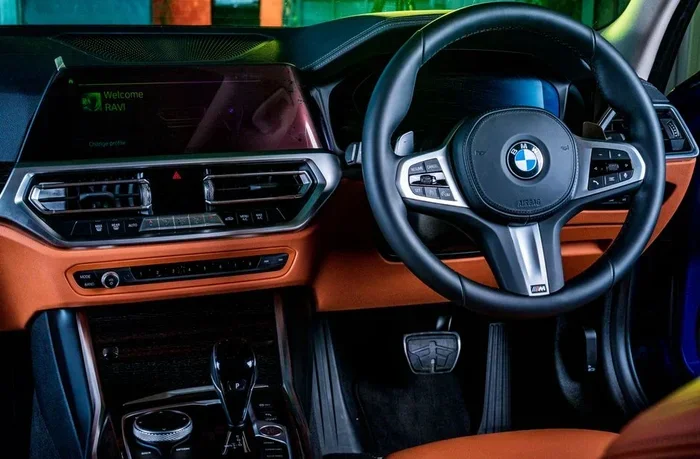
BMW iDrive is the brand’s proprietary infotainment and control system. It has been a core part of every BMW since the early 2000s. The latest versions, like iDrive 7 and iDrive 8, are essentially powerful computers running inside your dashboard.
Over time, the system can accumulate temporary files, corrupted data, or software conflicts. This leads to slow response times, frozen screens, or glitches in the BMW navigation system. A reset clears out these issues and brings the system back to life.
Think of it like restarting your smartphone. Sometimes a quick reboot solves everything. Other times, you need to go back to factory settings to fix deeper problems. The same logic applies to your BMW iDrive reset process.
How To Perform A Soft Reset On BMW iDrive
A soft reset is the first thing you should try. It restarts the system without deleting any of your personal settings, paired devices, or saved preferences. This method works on almost every BMW model, from the 3 Series to the X7.
Method 1: The Ignition Restart
This is the simplest way to reset BMW iDrive. Follow these steps carefully:
- Pull your BMW to a safe stop and put it in park.
- Turn the ignition off completely. Do not just put it in accessory mode.
- Wait at least 60 seconds. This gives the system time to fully power down.
- Turn the ignition back on. The iDrive system will boot up fresh.
In most cases, this alone fixes minor freezes, slow menu responses, and Bluetooth connectivity issues. It is the go-to first step for any BMW infotainment troubleshooting.
Method 2: The Hold-The-Power-Button Trick
If the screen is completely frozen and you cannot access the menu, try this trick:
- Locate the power button on your iDrive controller or touchscreen.
- Press and hold the button for about 10 to 15 seconds.
- The screen will go dark and then restart automatically.
- Wait for the system to fully boot back up.
This method forces a hard restart of the BMW touchscreen system. It works on iDrive 6 and iDrive 7 models especially well. You will not lose any data with this approach.
How To Factory Reset BMW iDrive (Full Reset)
A factory reset is a deeper process. It wipes all your custom settings and returns the BMW iDrive system to its original out-of-box state. You should only do this when a soft reset does not solve your problem.
Before you begin, make sure you have your BMW paired phone numbers saved somewhere else. A factory reset will clear all Bluetooth connections and paired devices. You will also lose any custom profile settings, saved navigation favorites, and personal display preferences.
Factory Reset Steps For iDrive 6 And iDrive 7
These steps work for most BMW models from 2015 onwards, including the F Series and G Series vehicles:
- Press the Home button on your iDrive controller to reach the main menu.
- Navigate to Settings. This is usually a gear icon on the bottom of the screen.
- Scroll down and select System.
- Look for the option that says Restore or Factory Reset.
- Confirm your choice when prompted.
- The system will restart and rebuild itself. This process can take 5 to 10 minutes.
Once the reset is complete, your BMW iDrive will look exactly like it did when you first drove the car off the lot. You will need to set up your preferences again, but the system should run much faster and smoother.
Factory Reset Steps For Older iDrive Systems (CIC And NBT)
If your BMW has an older iDrive system, the process is slightly different:
- Turn the ignition to the ON position without starting the engine.
- Press and hold the CD eject button on the iDrive controller.
- Hold it for about 10 seconds until a reset prompt appears on screen.
- Release the button and follow the on-screen instructions.
- The system will restart and load default settings.
This method works for BMW models equipped with the CIC (Connected iDrive) or NBT (Next Big Thing) iDrive platforms. It is a reliable way to restore BMW defaults on older vehicles.
How To Reset BMW iDrive Navigation System
Sometimes the problem is specific to the navigation module. Your BMW map data might be outdated, or the route guidance might start glitching. Resetting just the navigation portion can help without affecting your other settings.
To reset the BMW navigation system, go to Settings, then select Navigation. Look for an option called Map Settings or Navigation Reset. Choose the reset option and confirm. The system will reload the map data and clear any corrupted route information.
If your BMW has a hard drive-based navigation system, you can also try removing and reinstalling the map update DVD or USB. This forces the system to rebuild its map database from scratch.
Common BMW iDrive Problems That A Reset Fixes
You might be wondering whether a reset is really worth the effort. The answer is yes, in most cases. Here are the most common BMW iDrive problems that a reset can solve:
- Frozen or unresponsive touchscreen: The BMW screen freeze is one of the most reported issues. A reset clears the temporary memory and restores normal touch responsiveness.
- Slow menu loading times: If it takes more than a few seconds to open a menu, your iDrive needs a fresh start.
- Bluetooth pairing failures: Resetting the system often fixes connection drops between your phone and the BMW audio system.
- Navigation errors: Incorrect routing or missing map data can be resolved by resetting the navigation module.
- Audio system glitches: Distorted sound or no sound at all can sometimes be traced back to a corrupted iDrive setting.
- Climate control display issues: If the temperature display is acting up, a system reset can recalibrate the sensors.
Keep in mind that a reset is not a cure for hardware problems. If your BMW iDrive screen is physically cracked or the controller is mechanically broken, you will need professional repair, not a software reset.
Tips To Keep Your BMW iDrive Running Smoothly
Prevention is always better than cure. Here are some simple tips to keep your BMW infotainment system in top shape:
- Restart your iDrive regularly: Just like your phone, a periodic restart keeps things running well. Once a month is a good habit.
- Keep your software updated: BMW releases iDrive software updates that fix bugs and improve performance. Check for updates through your dealer or the myBMW app.
- Avoid filling your storage: A full hard drive or memory can slow down the system. Regularly delete unused music files and old navigation data.
- Use official BMW accessories: Aftermarket USB drives or non-certified adapters can cause compatibility issues with your iDrive system.
- Don’t force the touchscreen: Press gently and wait for responses. Aggressive tapping can cause input errors that compound over time.
When Should You Visit A BMW Dealer Instead Of Resetting?
There are times when a reset simply will not fix the problem. If you have tried both a soft reset and a factory reset and the issue persists, it is time to see a professional. Here are signs that your BMW needs dealer attention:
- The iDrive system crashes repeatedly even after a full factory reset.
- You see error codes on the dashboard that do not go away after a reboot.
- The BMW touchscreen has physical damage like cracks or dead spots.
- The iDrive controller does not respond at all, even after replacement attempts.
- You notice a burning smell or hear unusual noises coming from the infotainment unit.
A qualified BMW technician has access to diagnostic tools that can pinpoint hardware failures and deeper software issues. Sometimes the problem is a faulty amplifier, a failing hard drive, or a corrupted firmware update that needs professional flashing.
Do not hesitate to reach out to your local BMW dealer. Many iDrive issues are covered under warranty, and a simple fix might save you from a much bigger repair bill down the road.
Final Thoughts
Knowing how to reset BMW iDrive is one of the most useful skills any BMW owner can have. It saves time, money, and the hassle of visiting a dealer for minor issues. Whether you need a quick soft reset to clear a frozen screen or a full factory reset to start fresh, the steps in this guide will help you get it done right.
Remember to always back up your important settings before performing a factory reset. Start with the simplest method first and work your way up to a full reset only if needed. Your BMW iDrive system is a powerful tool, and with a little regular maintenance, it will keep running smoothly for years to come.
Now that you have all the information you need, go ahead and try the reset that fits your situation. Your BMW will thank you for it.
Frequently Asked Questions
Will resetting BMW iDrive delete my saved navigation addresses?
Yes, a full factory reset will erase all saved navigation addresses, favorites, and recent destinations. A soft reset or simple restart will not delete any of your data. Always back up important navigation points before performing a factory reset.
How long does a BMW iDrive reset take?
A soft reset takes about 1 to 2 minutes. A full factory reset can take anywhere from 5 to 15 minutes depending on your BMW model and iDrive version. The system will restart automatically once the process is complete.
Can I reset BMW iDrive while driving?
No, you should never reset the iDrive system while the vehicle is in motion. Always park your BMW in a safe location and put the car in park before starting any reset procedure. This ensures your safety and prevents system errors.
What is the difference between a soft reset and a factory reset on BMW iDrive?
A soft reset simply restarts the system without deleting any data or settings. A factory reset wipes all customizations, paired devices, and personal preferences, returning the iDrive system to its original out-of-box state. Always try a soft reset first.
Why does my BMW iDrive keep freezing even after a reset?
Repeated freezing after a reset could indicate a deeper software issue or a hardware problem. Make sure your iDrive software is fully updated. If the problem continues, visit a BMW dealer for a professional diagnostic check.
Do I need any special tools to reset BMW iDrive?
No special tools are needed for any of the reset methods described in this guide. All resets can be done using the iDrive controller, the touchscreen, or the physical buttons on your BMW dashboard. Just follow the steps carefully and you will be fine.
=== CONCLUSION ===
Resetting your BMW iDrive does not have to be intimidating. With the right steps, you can fix most common problems in just a few minutes. A simple soft reset handles minor glitches, while a full factory reset gives you a completely fresh start. Always remember to back up your settings first, and start with the gentlest method before moving to a deeper reset. Keep your BMW iDrive system updated, restart it regularly, and you will enjoy a smooth, responsive driving experience every time you get behind the wheel. Now go ahead and give your BMW iDrive the fresh start it deserves.